Installing Apple Shortcuts
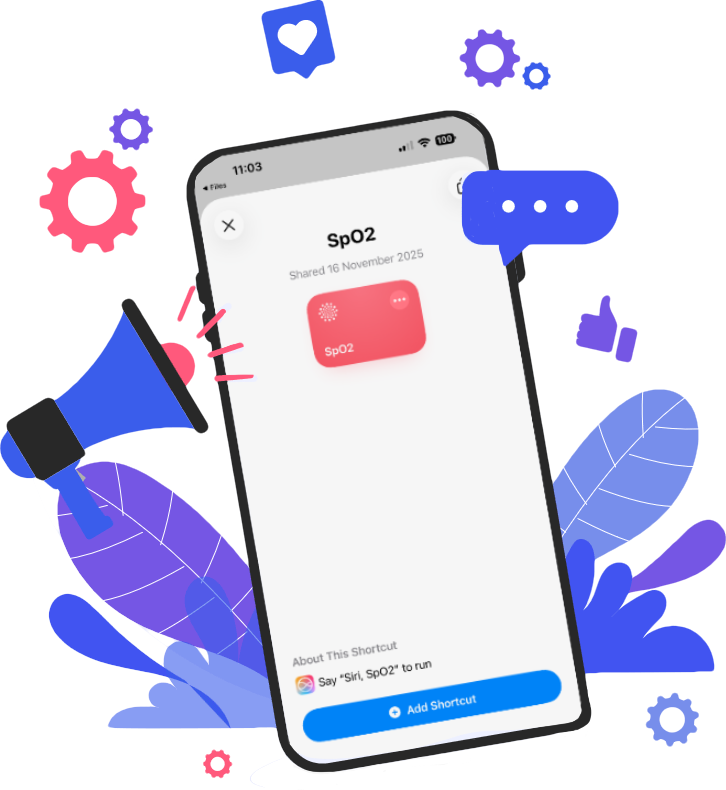
Click the download link
You can download from any Apple device
Click Add Shortcut
Tapping 'Add Shortcut' will install on your device
Shortcut is downloaded
The requested Shortcut is downloaded from Apple's servers
Move to sub-folder
Optionally you can organise your Shortcuts into folders
Edit if you wish
All Shortcut content (coding) is freely viewable and editable
Sync Across your Devices
Shortcuts are sync'd to every device connected to the same iCloud account
Shortcuts
How they work and why they are safe
Permission prompts
On device Javascript analysis
Local malware dictionary
Locally encrypted storage
iCloud sharing
Cannot run without user permission
Run Apple Shortcuts on iPhone, iPad, Mac or Watch
All your Shortcuts (default from Apple and those you have downloaded) can be found in the Shortcuts app.
From an iPhone or iPad
Open the Shortcuts app and tap the icon for the desired Shortcut (note: tapping the will open the Shortcut for viewing or editing).
From a Mac
Open the Shortcuts app, click the play icon (); note: double clicking the Shortcut icon opens it for viewing or editing.
You can place one or more shortcut icons on your home screen (iPhone or iPad) or in the dock (Mac).
Adding a Shortcut to Home Screen
Tap the then tap then tap 'Add to Home Screen' .
Adding to Mac Dock
Right click the icon, click 'Add to Dock'.
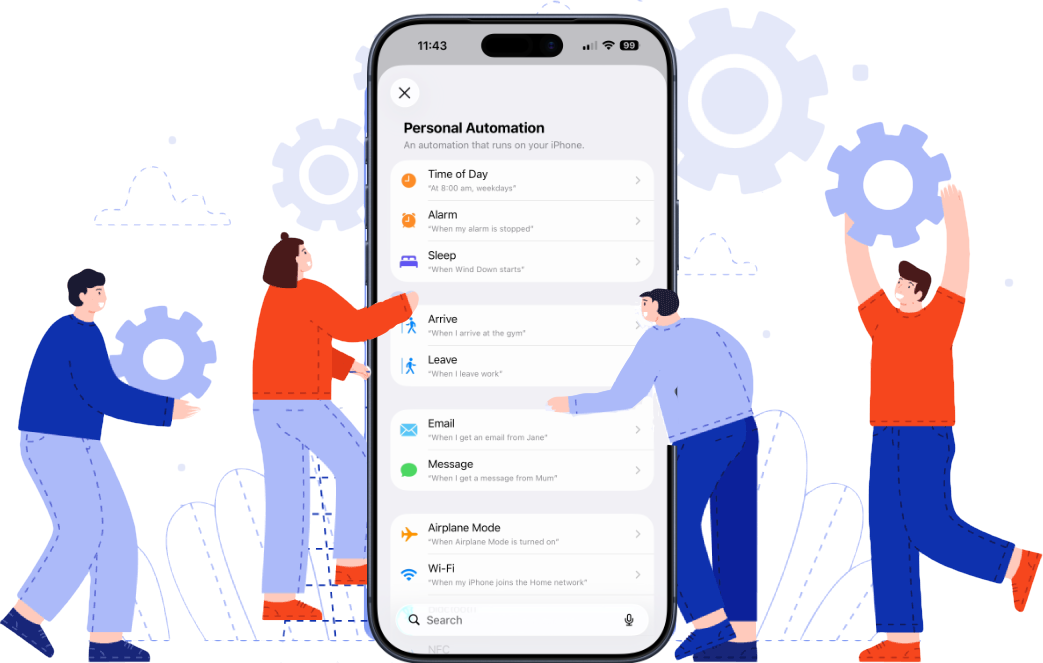
You can create an Automation in the Shortcuts app (open the Shortcuts app then click 'Automation').
Running a shortcut at a time (daily, weekly, monthly)
Click + to create a new Automation then select 'Time of Day' and follow the prompts. NOTE: set 'Run Immediately' to off to avoid a prompt before the Shortcut is executed.
Creating a location based Automation
Open the Shortcuts app on your iPhone and select Automation; tap + to create a new Automation then select 'Arrive' or 'Leave' and follow the prompts. NOTE: set 'Run Immediately' to off to avoid a prompt before the Shortcut is executed.
One or more Shortcuts can be placed in your control Panel (pull down from top right on iPhone or iPad).
Adding a Shortcut to Control Panel (iPhone, iPad)
Open Control Panel (pull down from top right of screen); tap + then tap 'Add a Control'; scroll down and select 'Shortcuts' - follow the prompts to put your desired Shortcut in your Control Panel.
NFC tags are small coin-sized stickers that can be read by your iPhone; when read the NFC tag can launch a selected Shortcut (NFC tags cost a few pence each from Amazon).
Setting up your NFC tag
Open the Shortcuts app on your iPhone and select Automation; tap + to create a new Automation then select NFC and follow the prompts (when asked to 'Scan' hold your iPhone top left near the tag). NOTE: set 'Run Immediately' to off to avoid a prompt before the Shortcut is executed.
Using your NFC tag(s)
Most NFC tags have an adhesive base which can be attached to your selected surface; for example: attach a tag near the helm of a boat to launch 'Sound Signals' on demand.
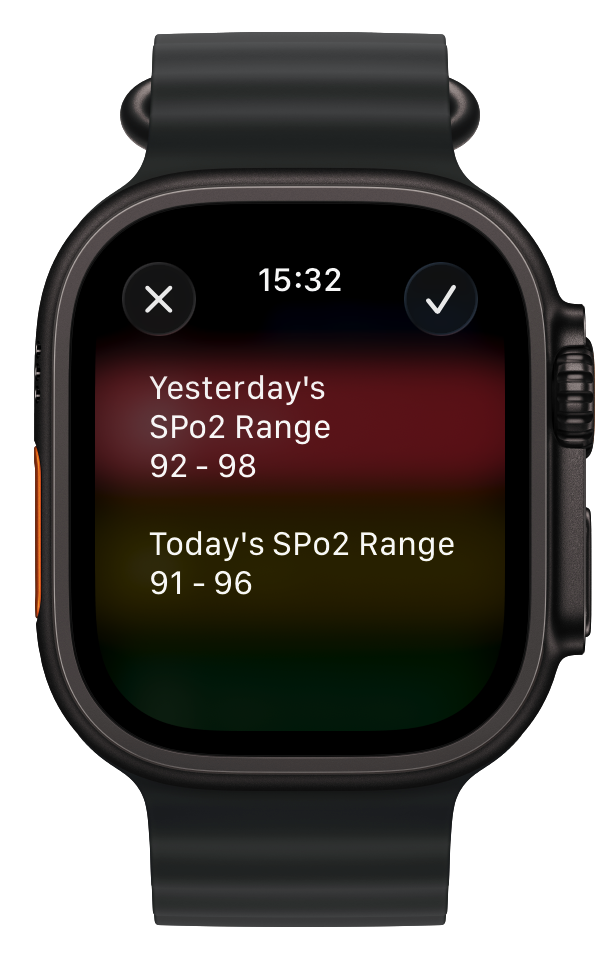
Some Shortcuts are suitable for running on an Apple Watch.
Which Shortcuts suit an Apple Watch
Only shortcuts that use supported actions (like opening apps, sending messages, or controlling watchOS features) will run; watch Shortcuts must be created on an iPhone.
Shortcuts must be enabled for Apple Watch
Shortcuts can be added as complications to your watch face; or they can be accessed via the Shortcuts app or Smart Stack on the watch.
shortcuts:
Free to download, free to use, no ads
Boating Shortcuts
Some specifics for the River Thames (non-tidal and tidal) and some for general boating.
ViewPersonal Shortcuts
Shortcuts to help with your day-to-day activities and general saving time on routine stuff.
ViewConversion Shortcuts
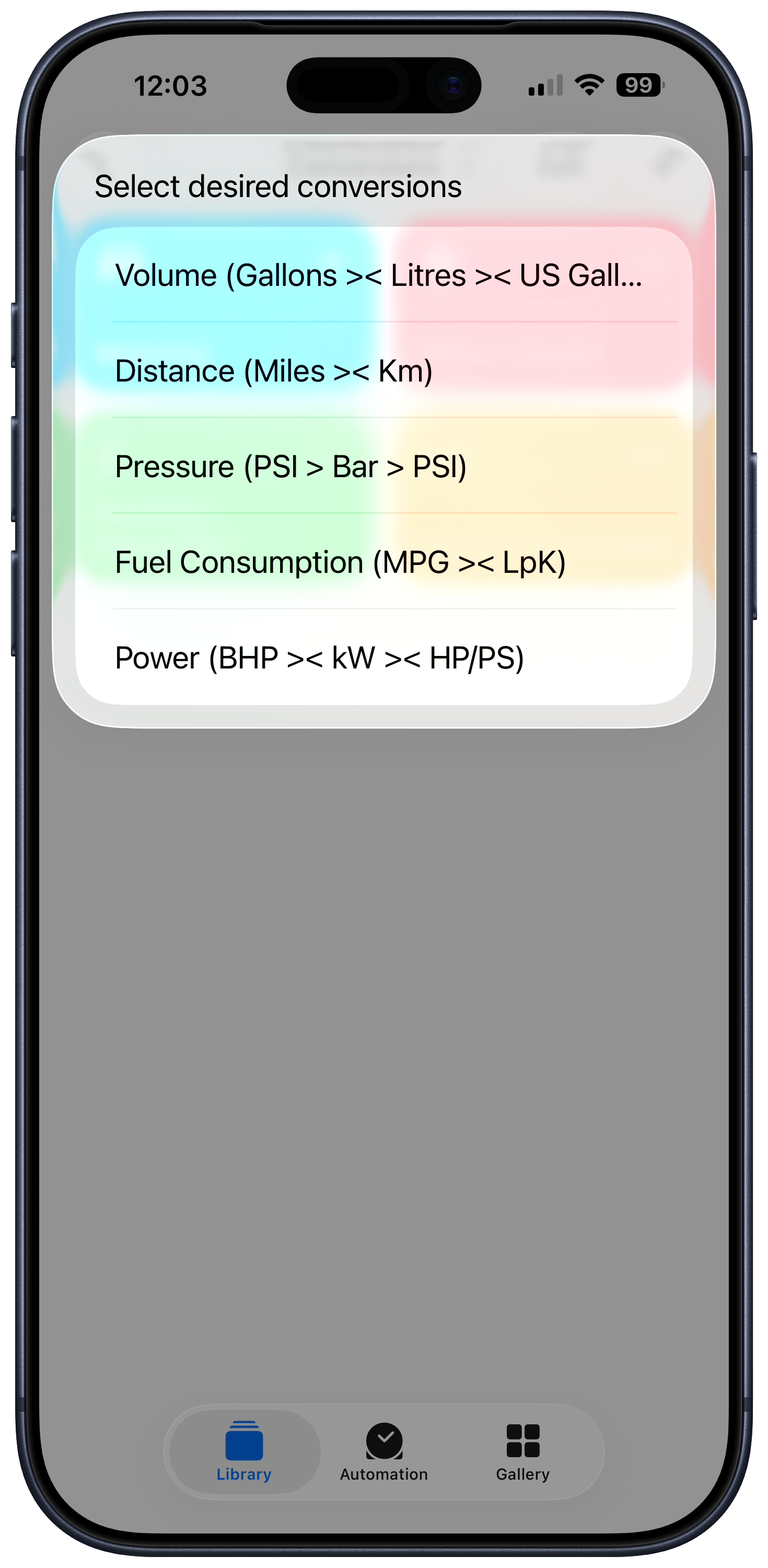
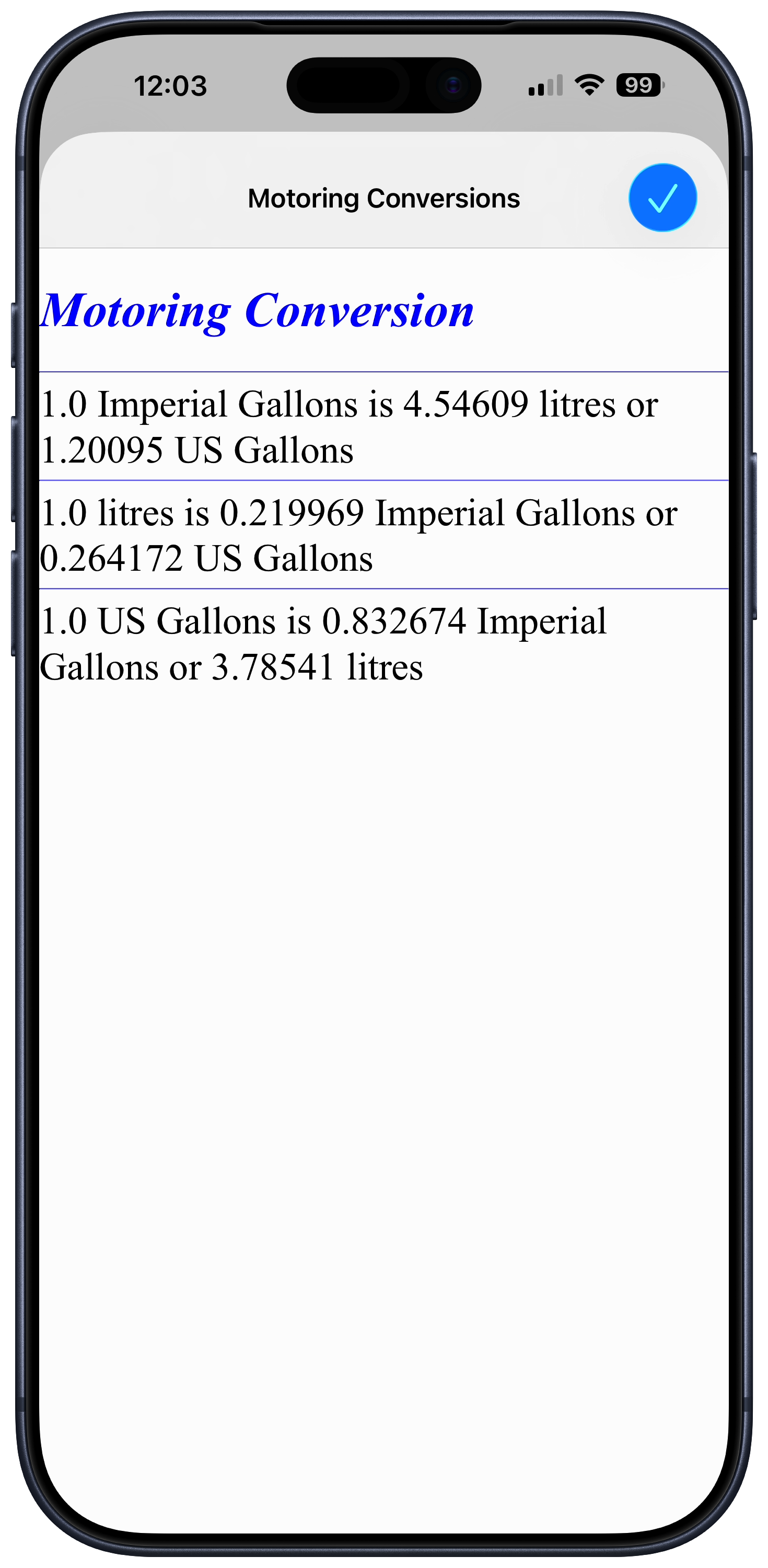
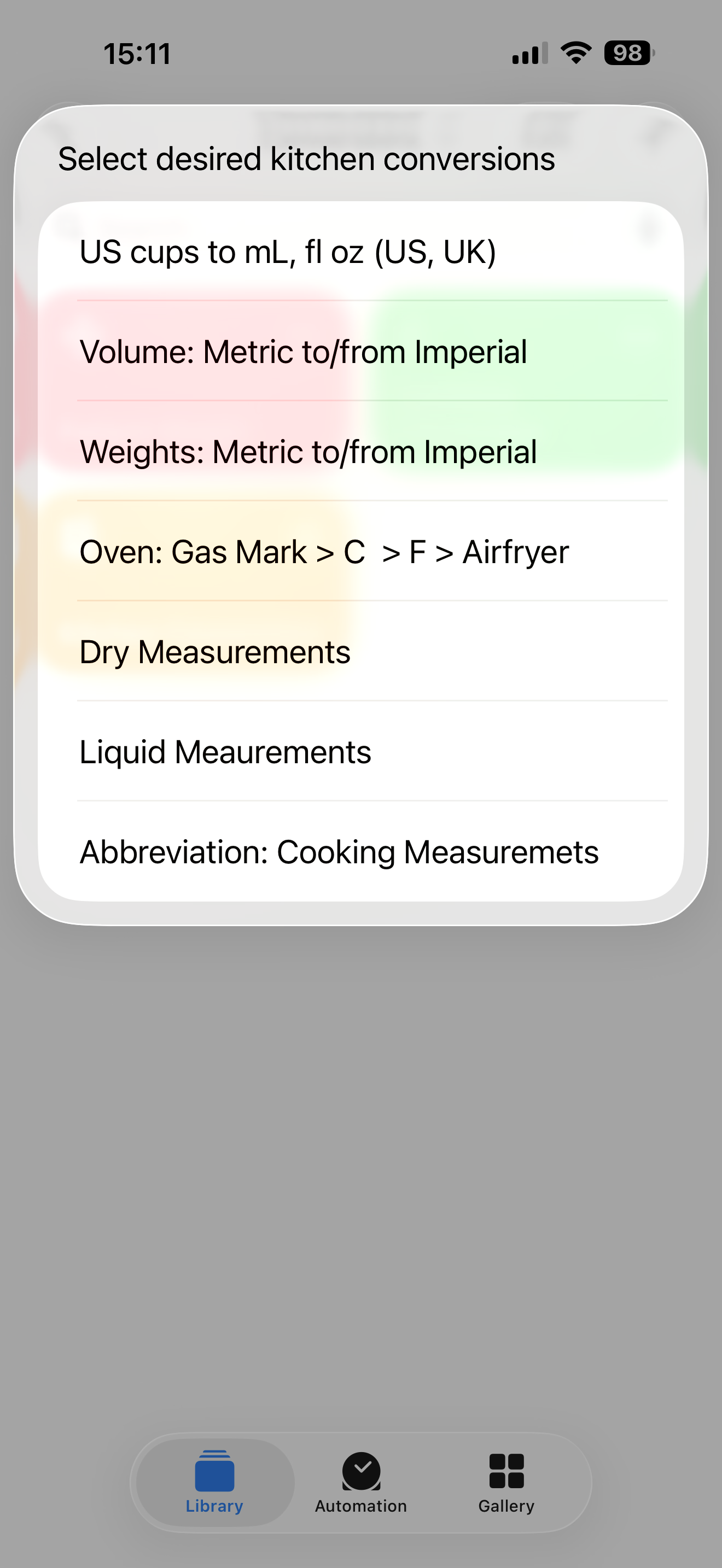
Conversions for currency (to/from 52 currencies), motoring, kitchen measures, patient weight and more.
ViewMedical Shortcuts
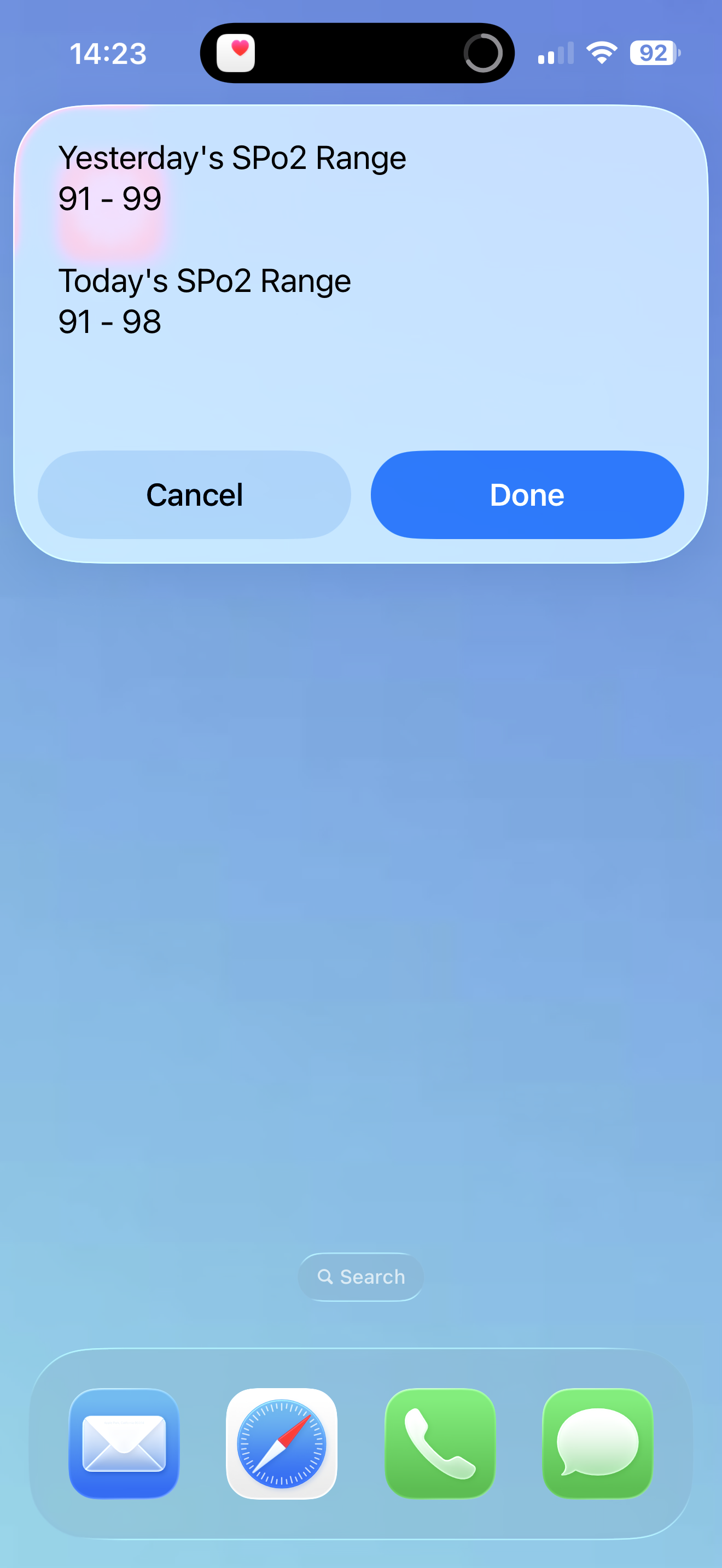
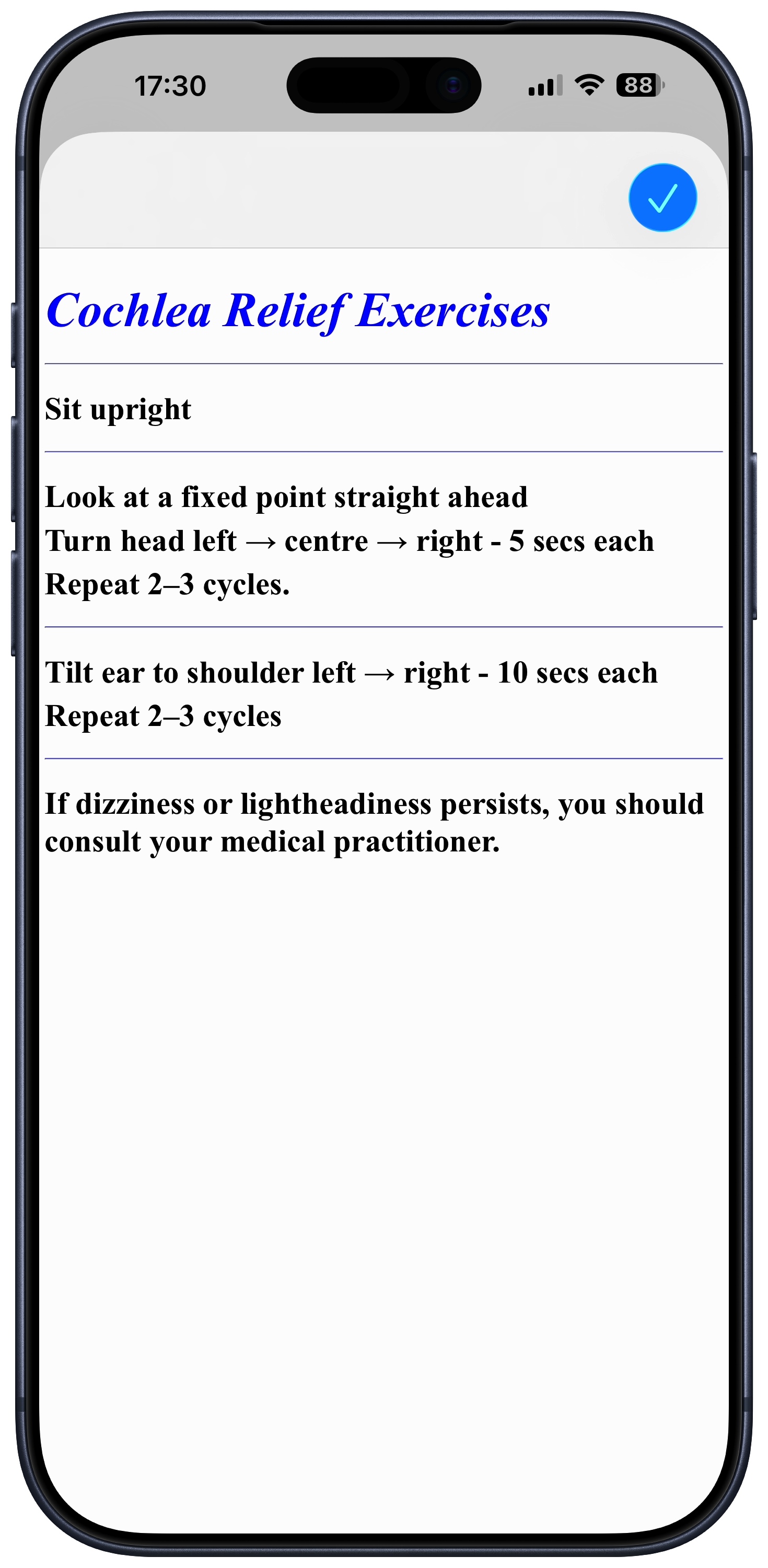
Exercises to help relieve 'stickiness' in your cochlea, Blood Oxygen readings and other health related.
ViewProductivity Shortcuts
Shortcuts to help keep you focussed and complete some frequently needed, but elemental, tasks.
ViewF.A.Q
Frequently Asked Questions
Any and all shortcuts can be viewed and modified by anyone; if you are not too familiar with how Shortcuts work it makes sense to first create a copy and make changes to that; when happy with your changes, you can delete the original.
Testimonials
What they are saying about Shortcuts
"Recently I worked for an iOS app called Workflow, where I learned to access a whole new layer of technology building workflows. After Apple acquired the app and made it free, I stayed for the transition but then went out on my own". Now, I’m trying to show others how to use technology better too..
Matt Cassinelli
Developer
"I have been using the app since its predecessor, Workflow, to demonstrate the limits of iOS automation. My work showcases highly complex and powerful shortcuts, including those used to assemble my website's archive".
Federico Viticci
MacStories
"Shortcuts have changed my life" by automating almost any repetitive task, finding that the app saved significant time once they mastered API calls and regex..
Reddit User
Enthusiast
Apple officially describes a shortcut as "a quick way to get one or more tasks done with your apps" and notes that "Each shortcut comprises a series of actions and each action is a single step that performs a particular function".
Apple Support
Just Apple...
Contact
Contact Jeff
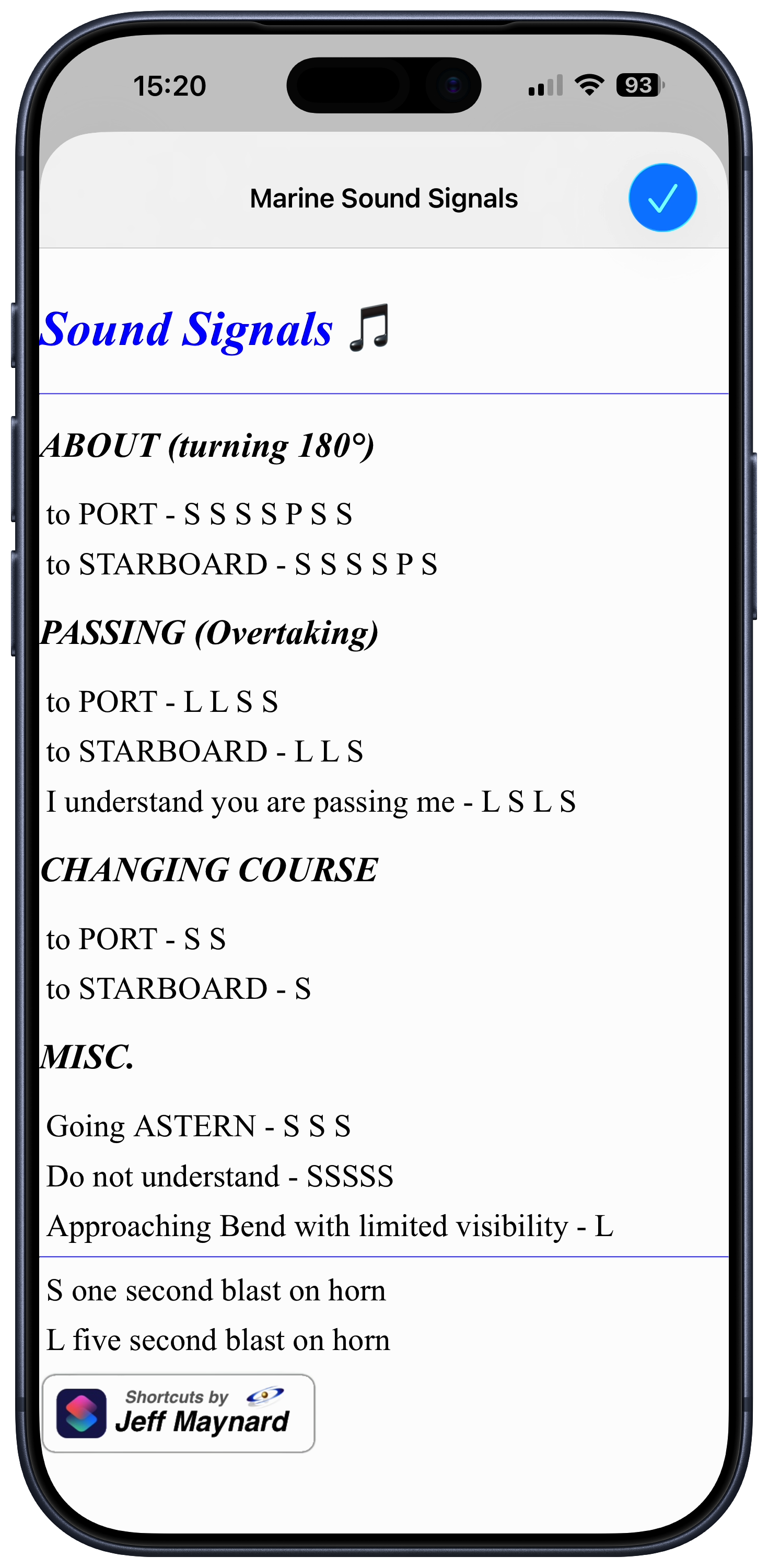
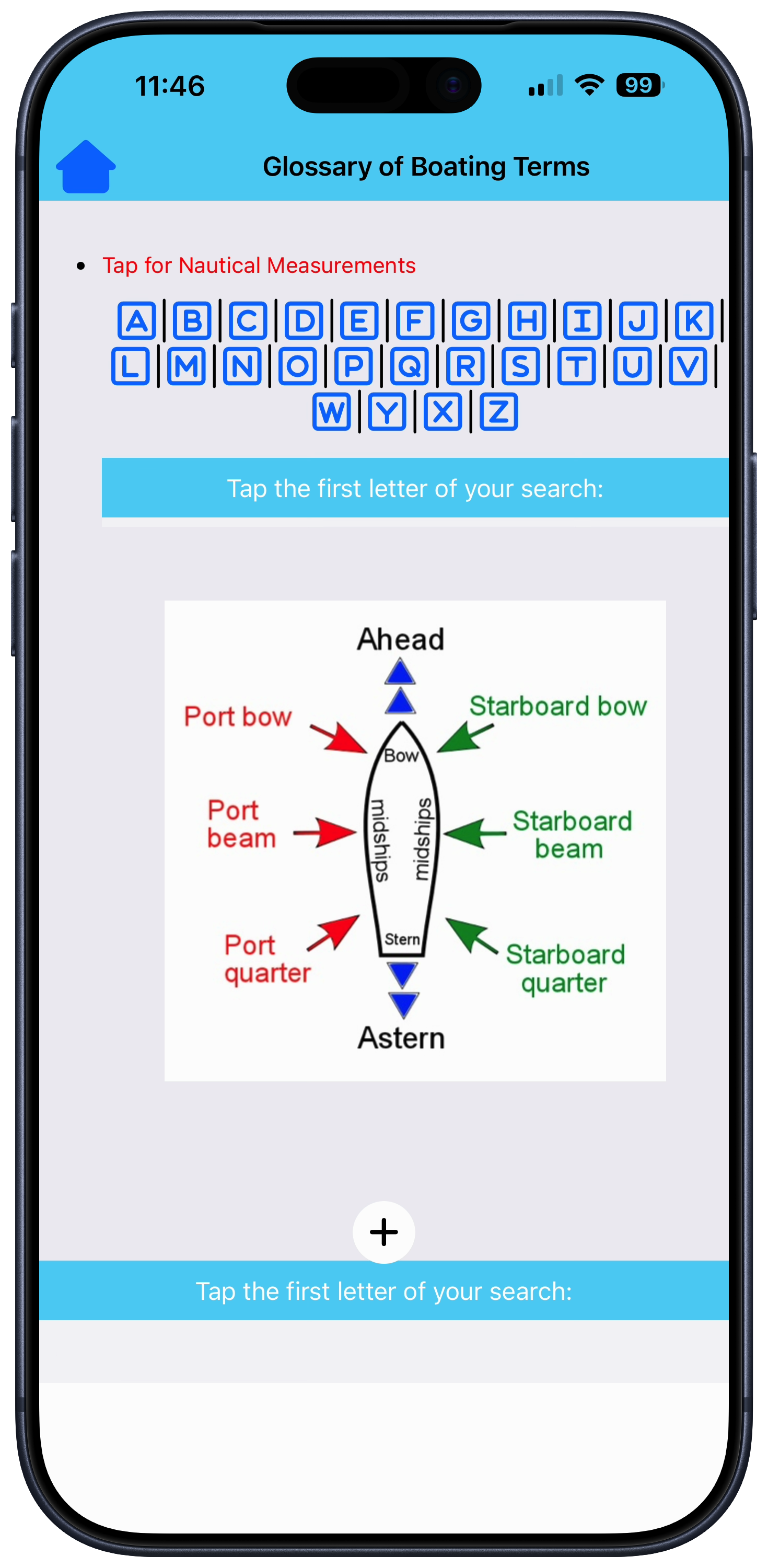

 Sound Signals
 Boating Glossary
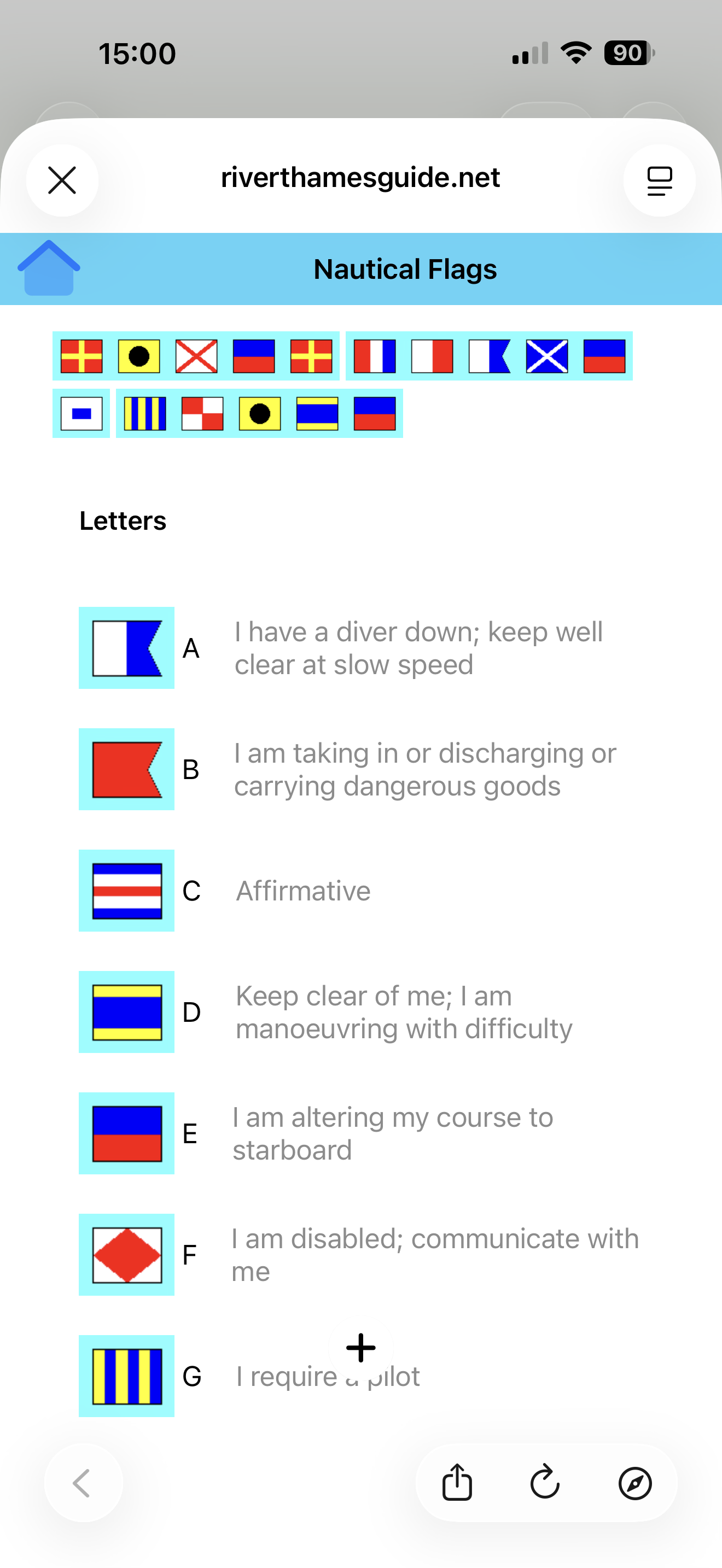
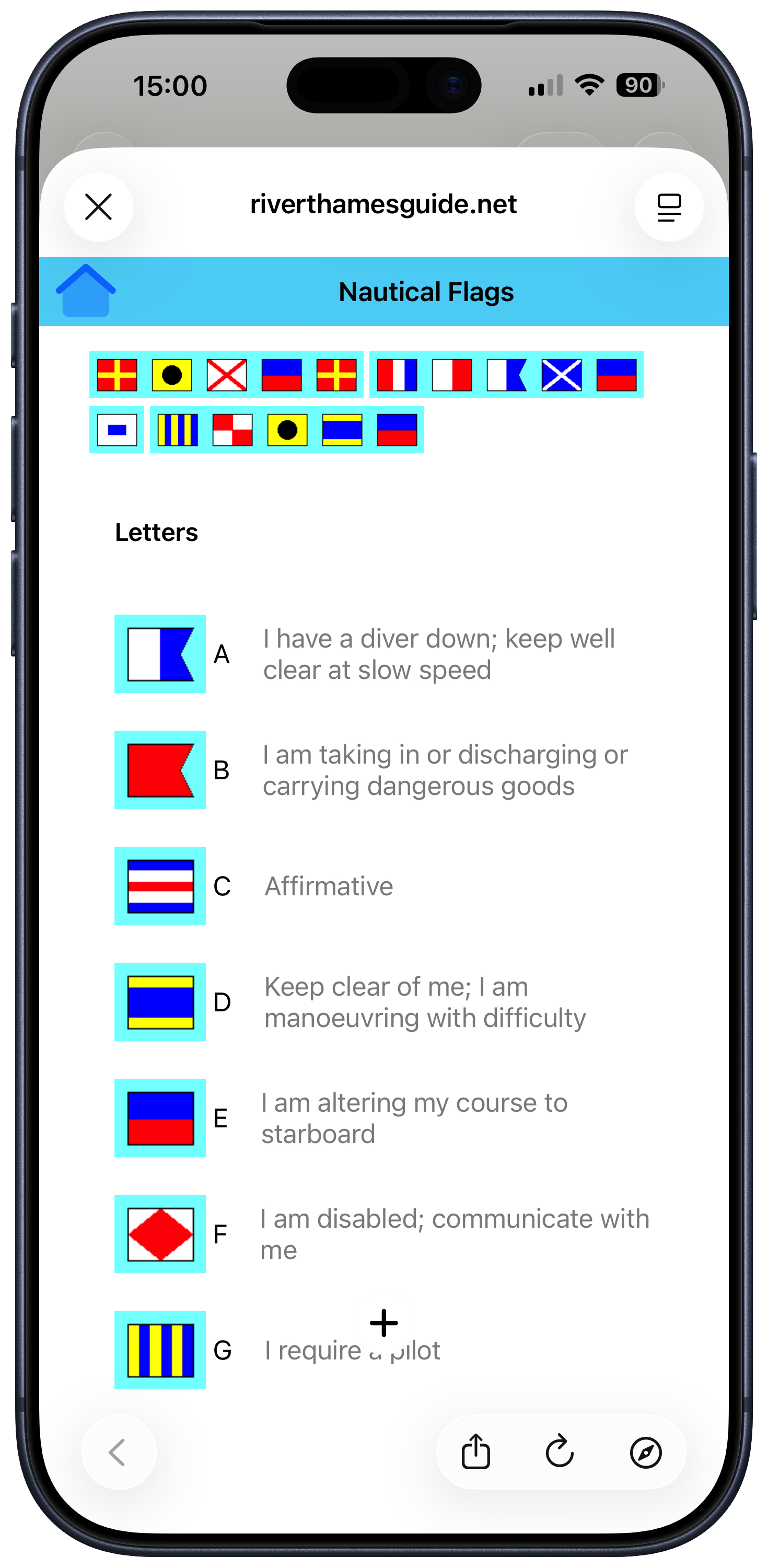
 Nautical Flags
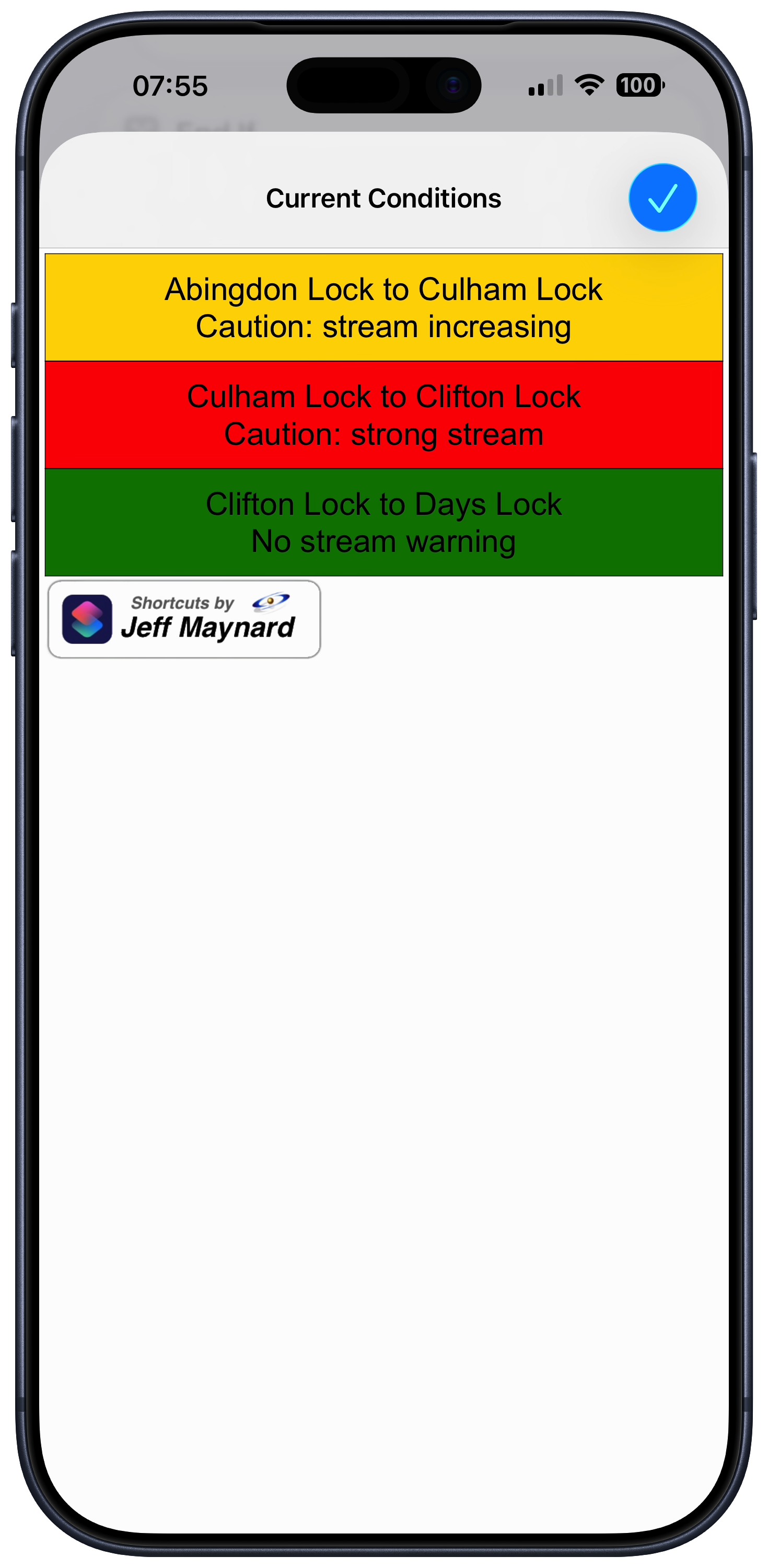
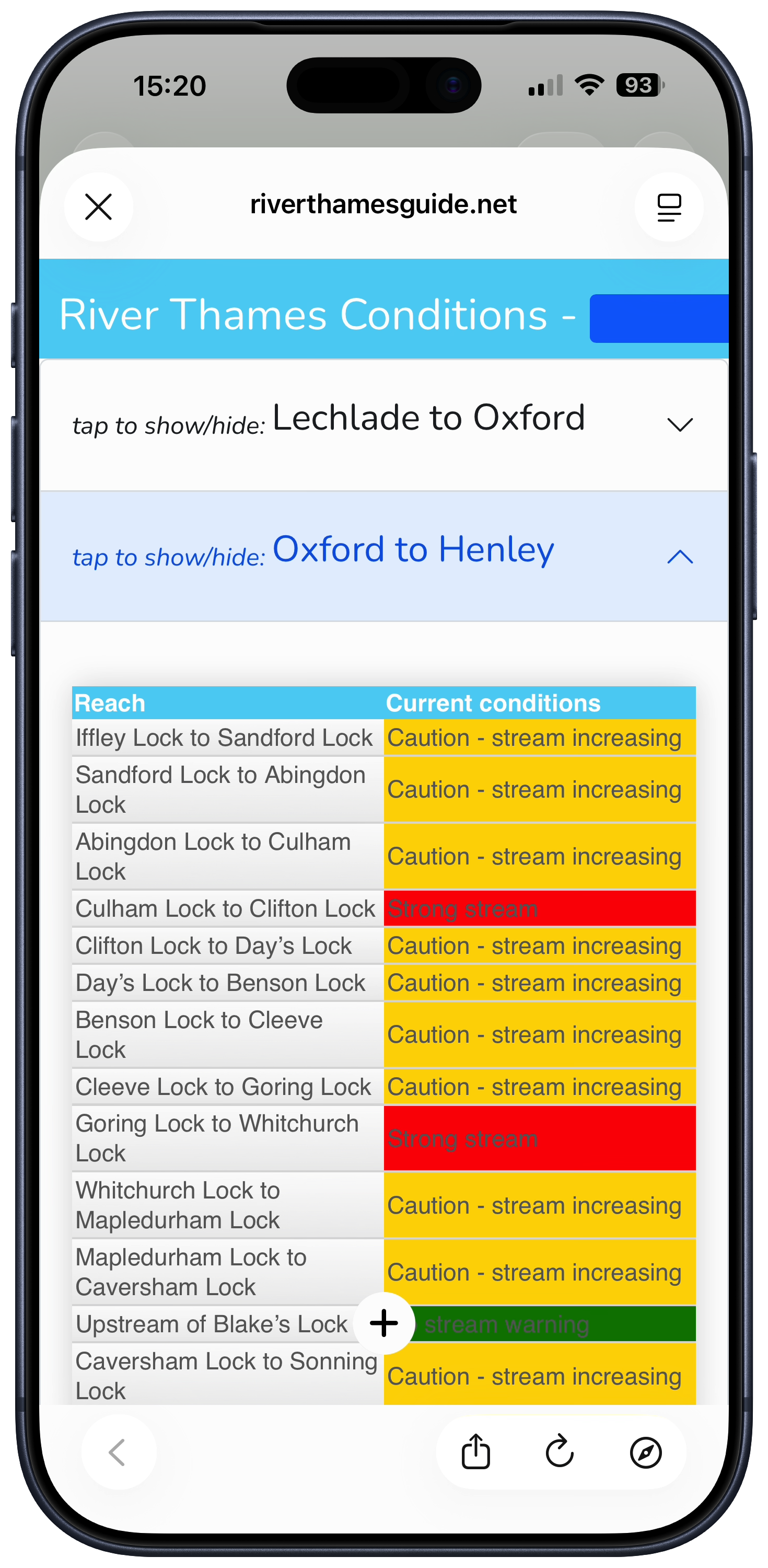
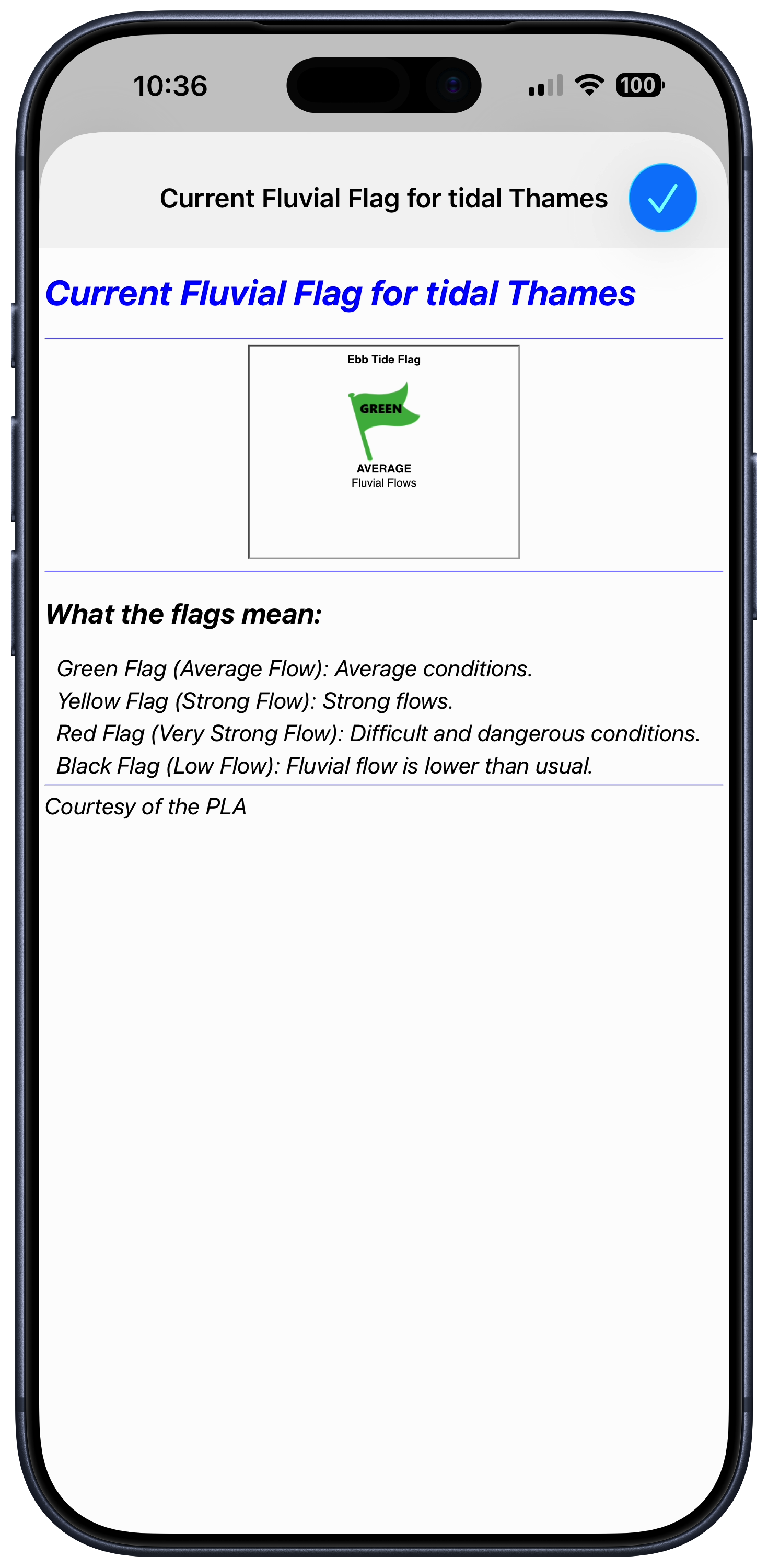
 Various Thames-related Shortcuts
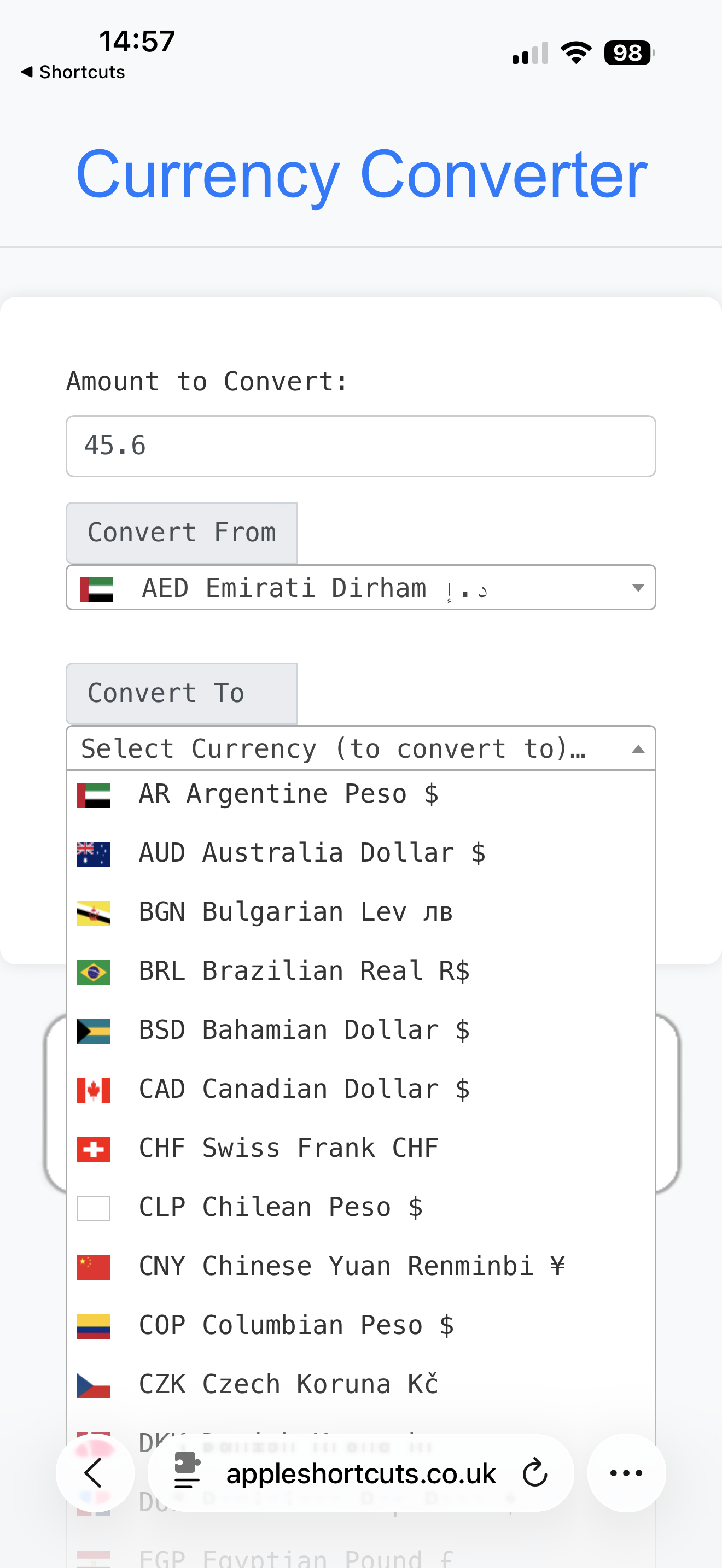
 Currency Converter
 Motoring Converter
 Kitchen converter
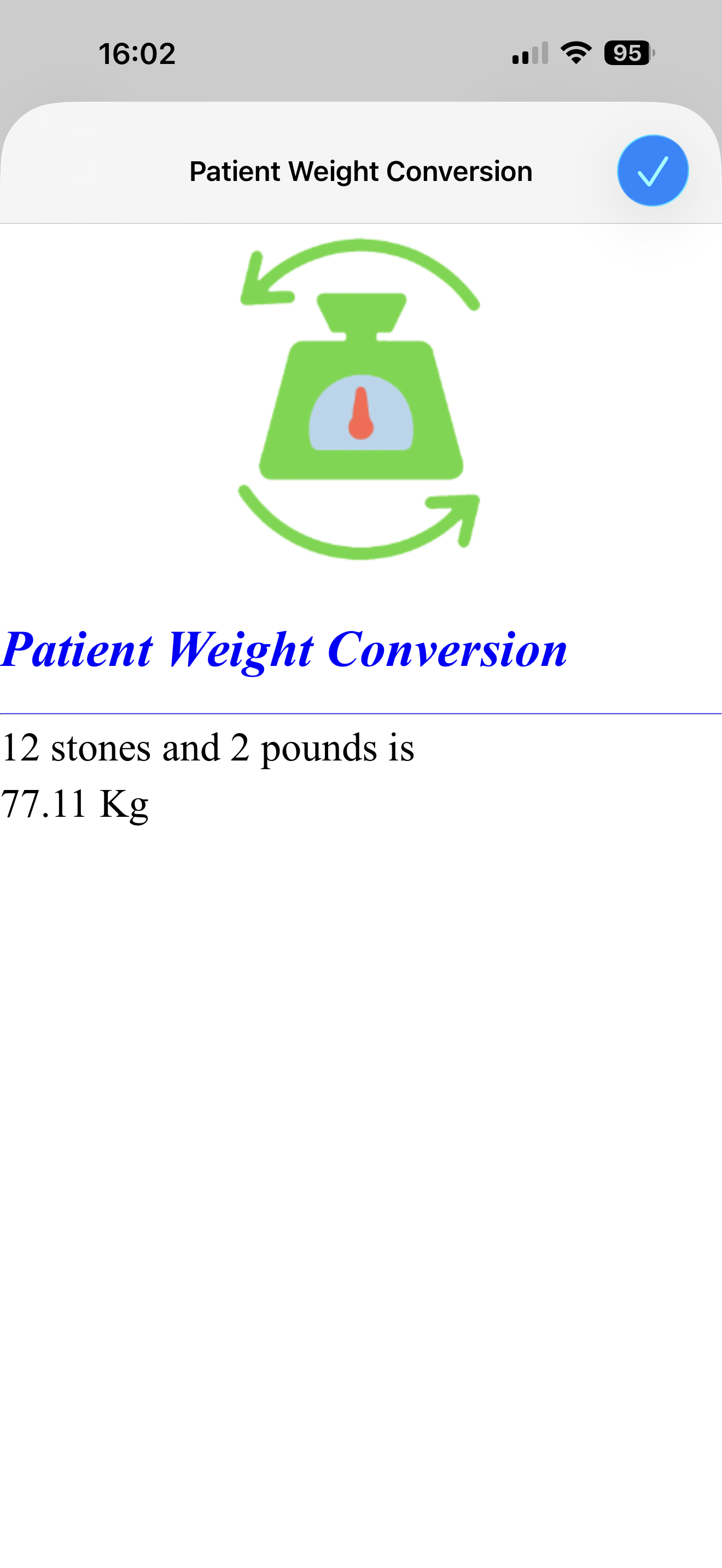
 Patient Weight
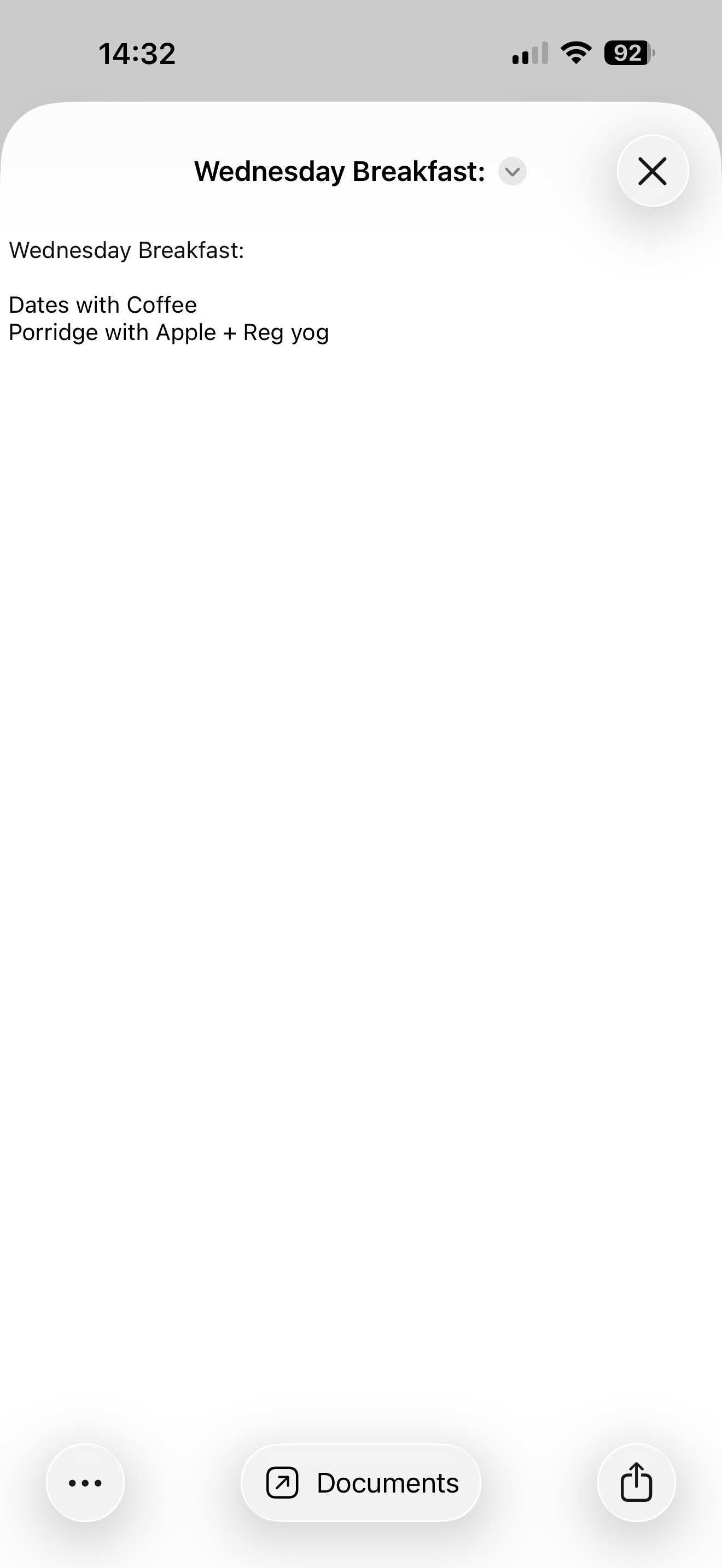
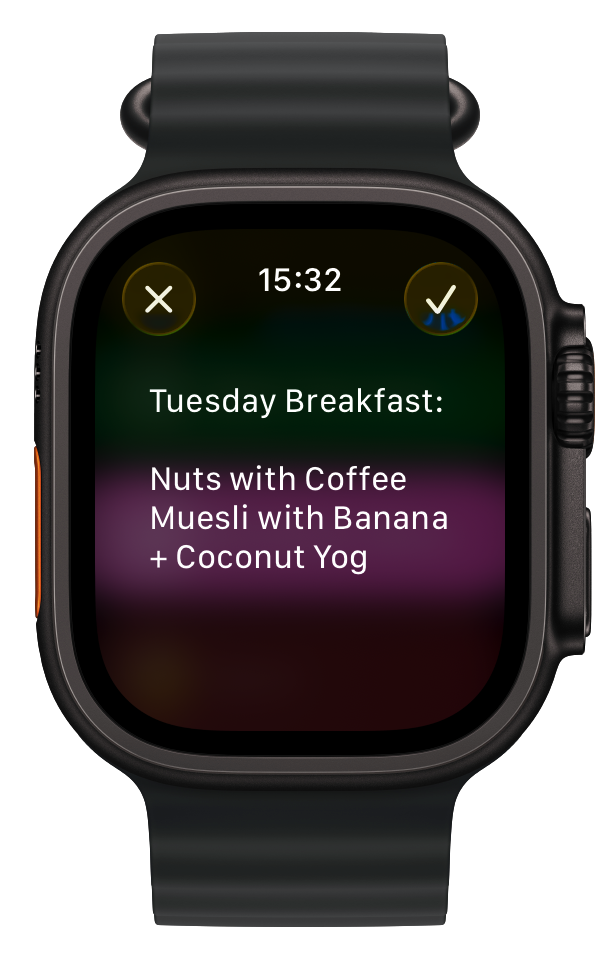
 Breakfast Menu
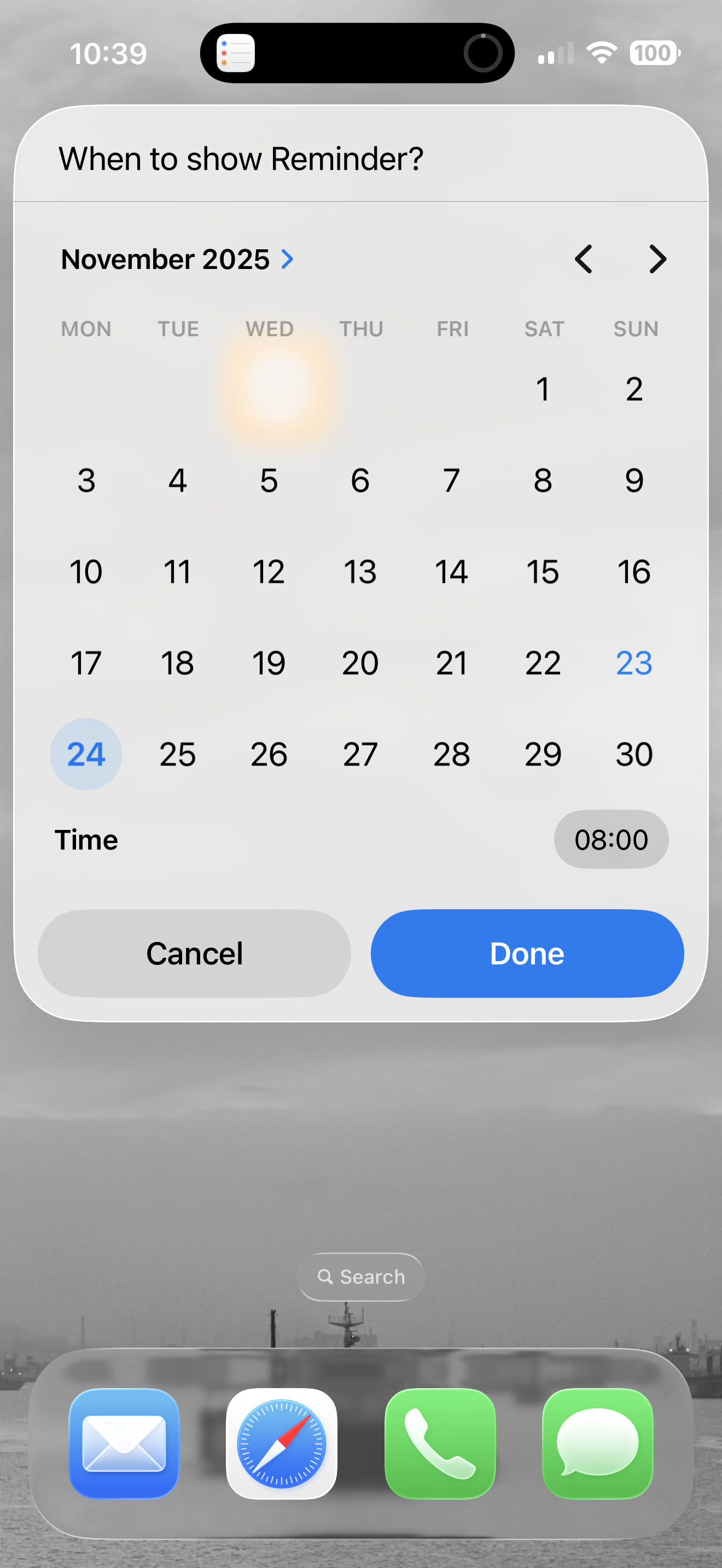
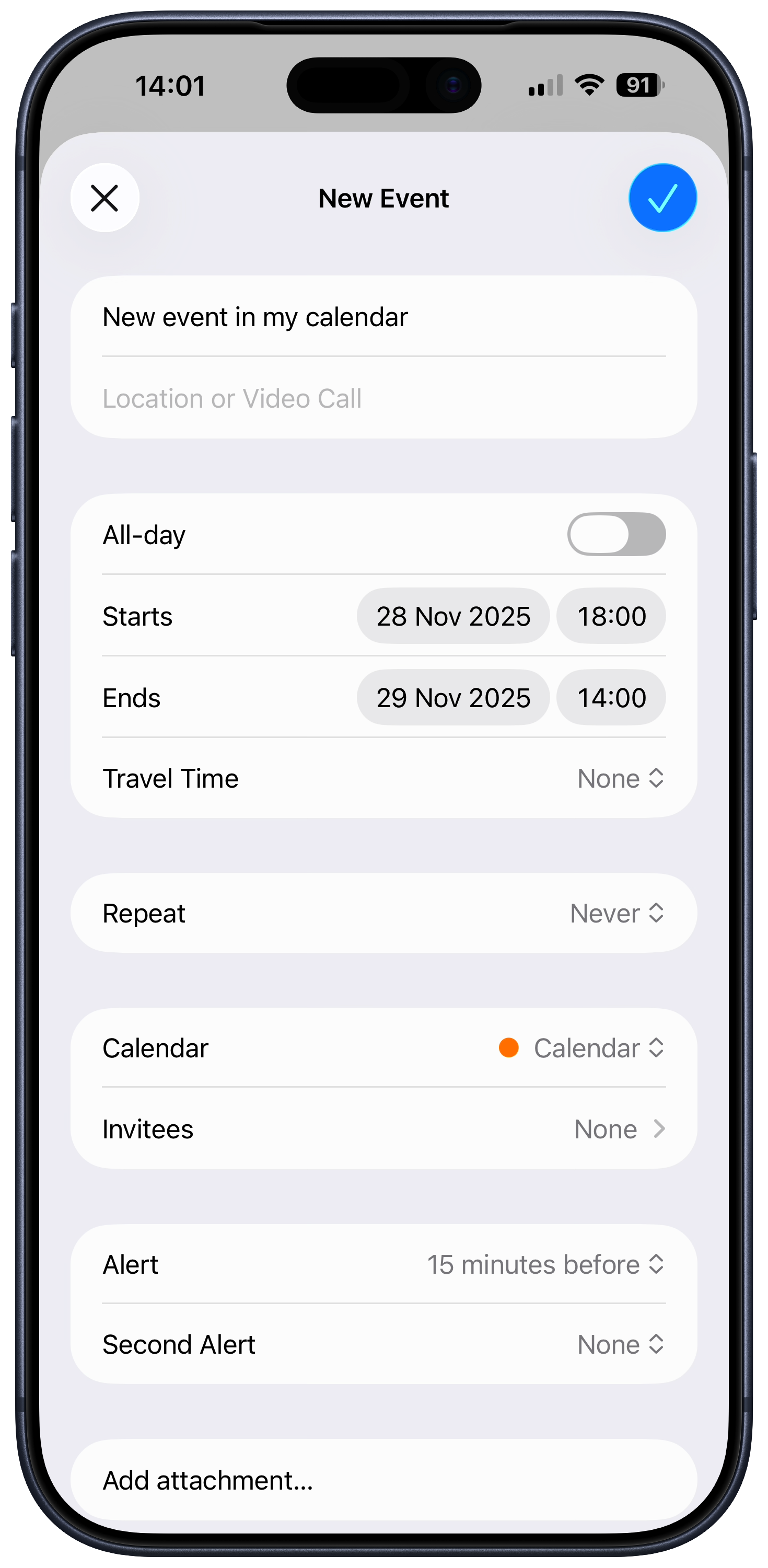
 New Reminder
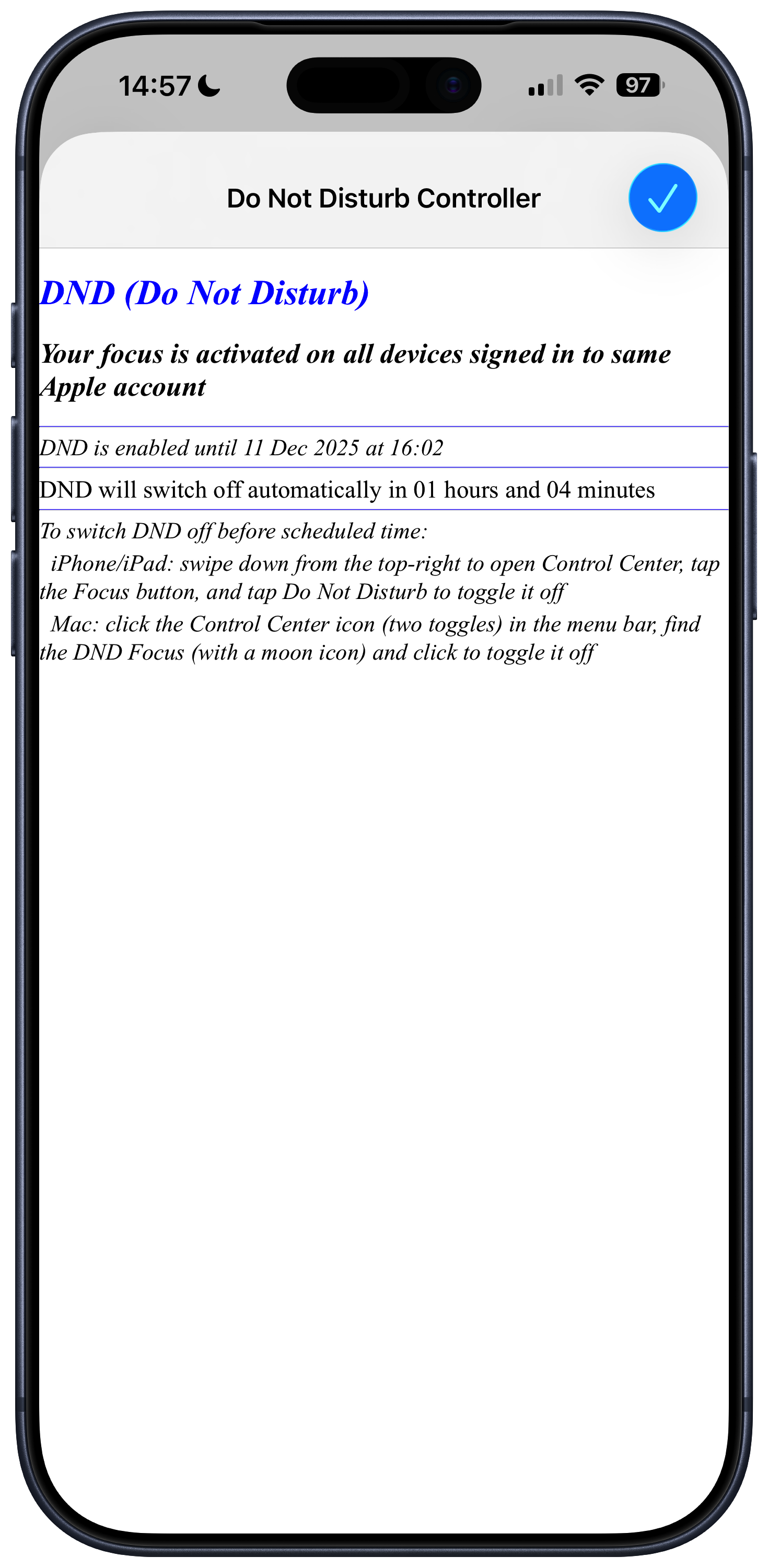
 Do Not Disturb
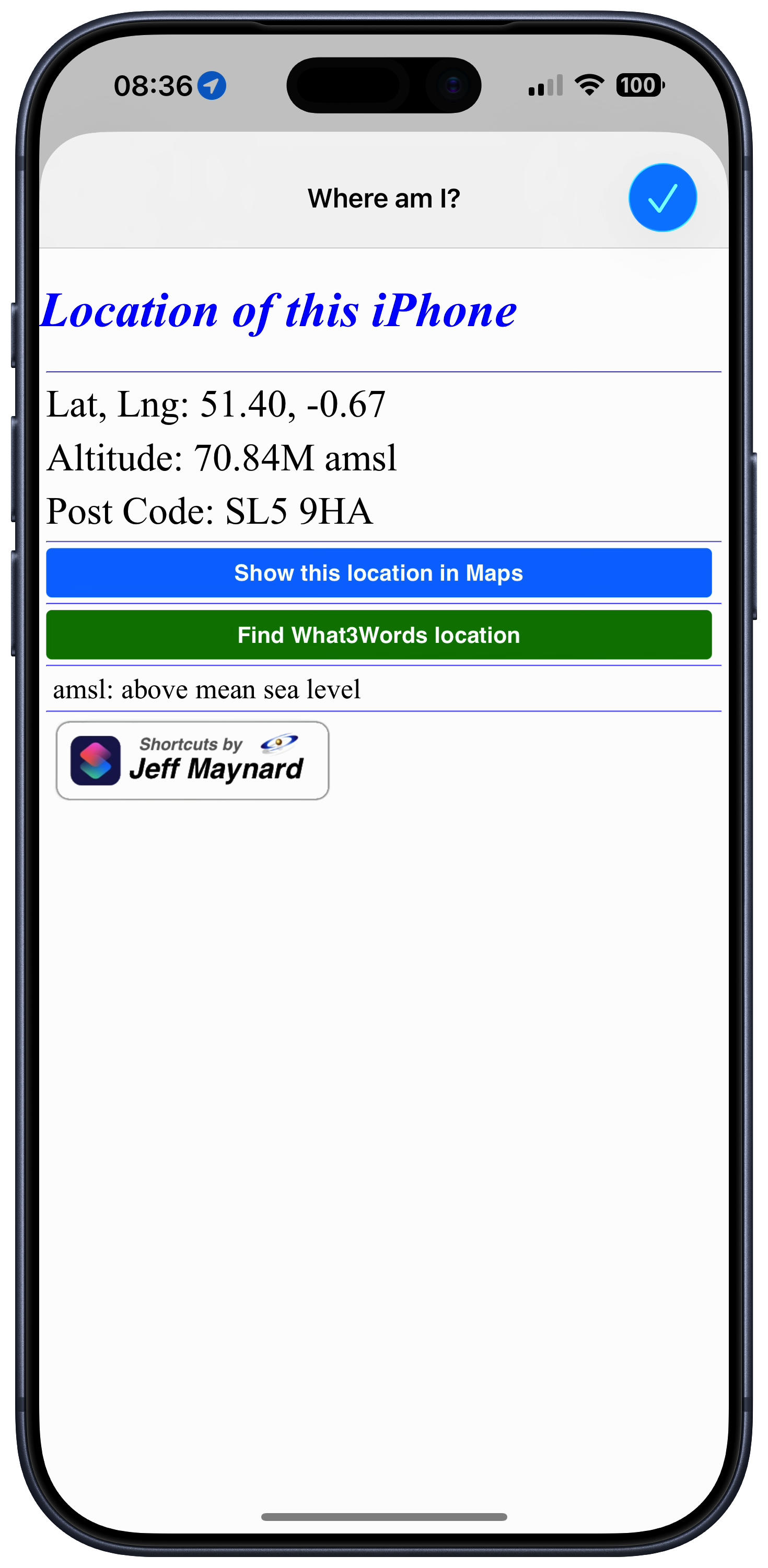
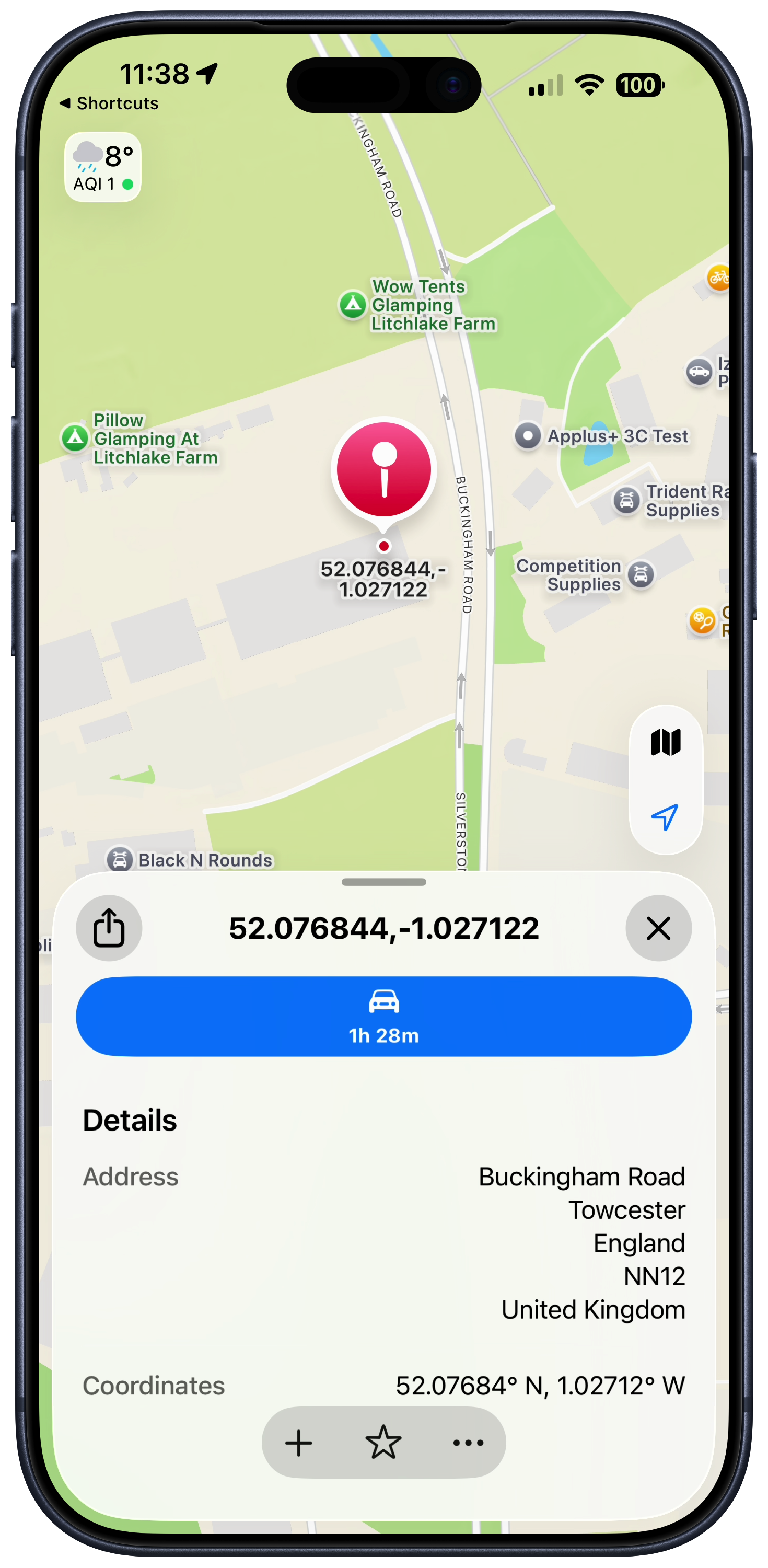
 Where Am I?
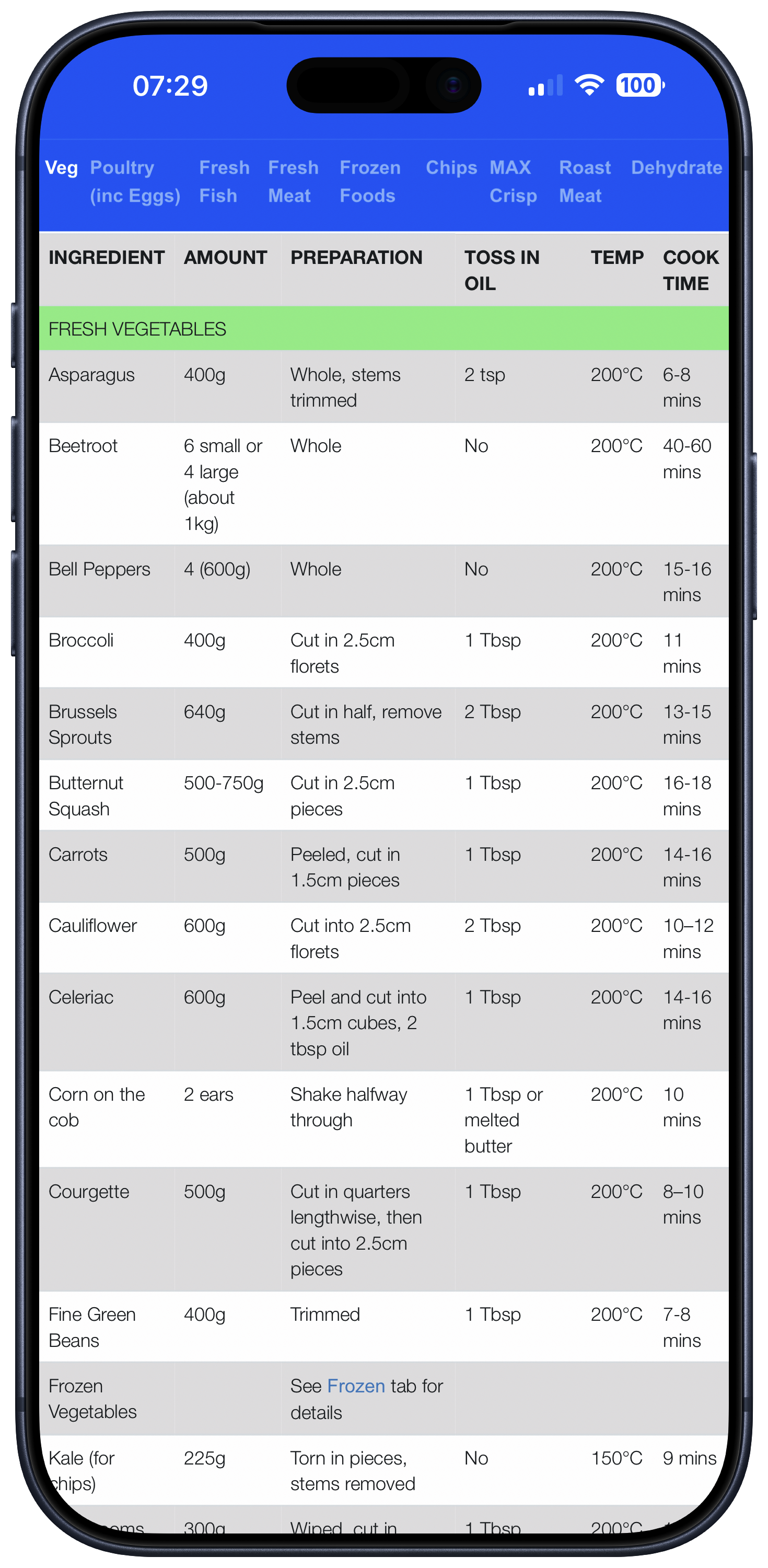
 Air Fryer
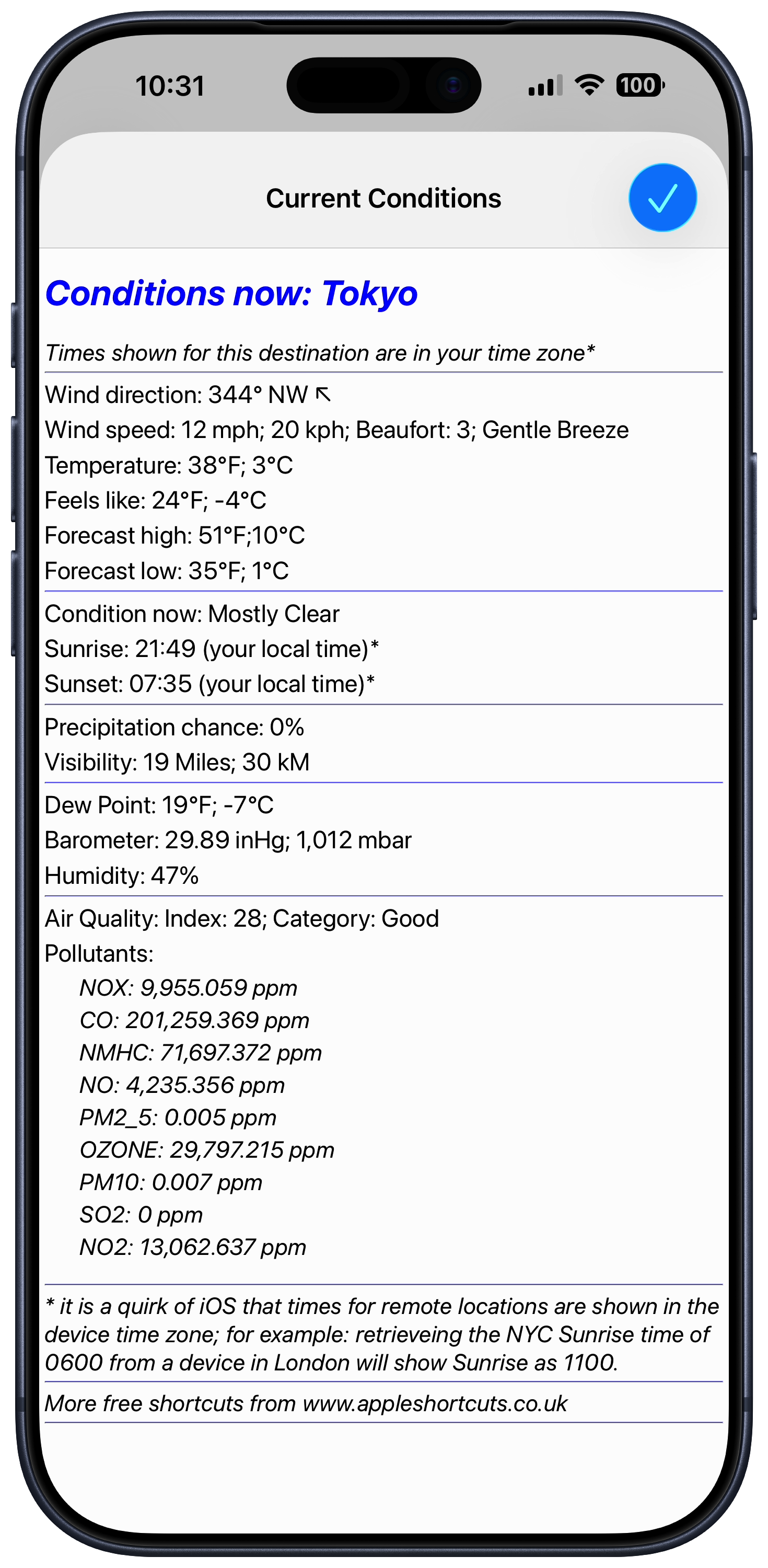
 Conditions Now
 Blood Oxygen
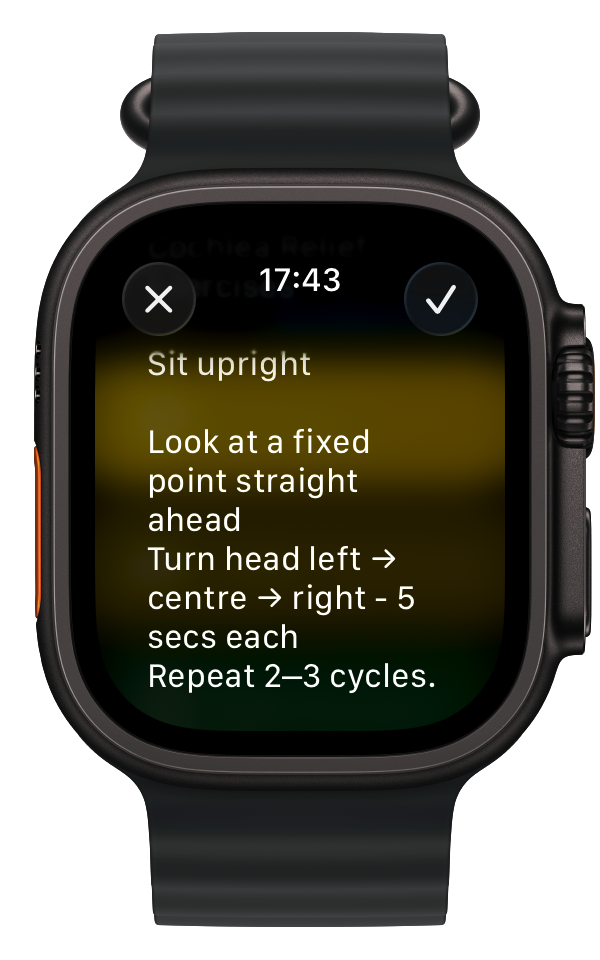
 Cochlea
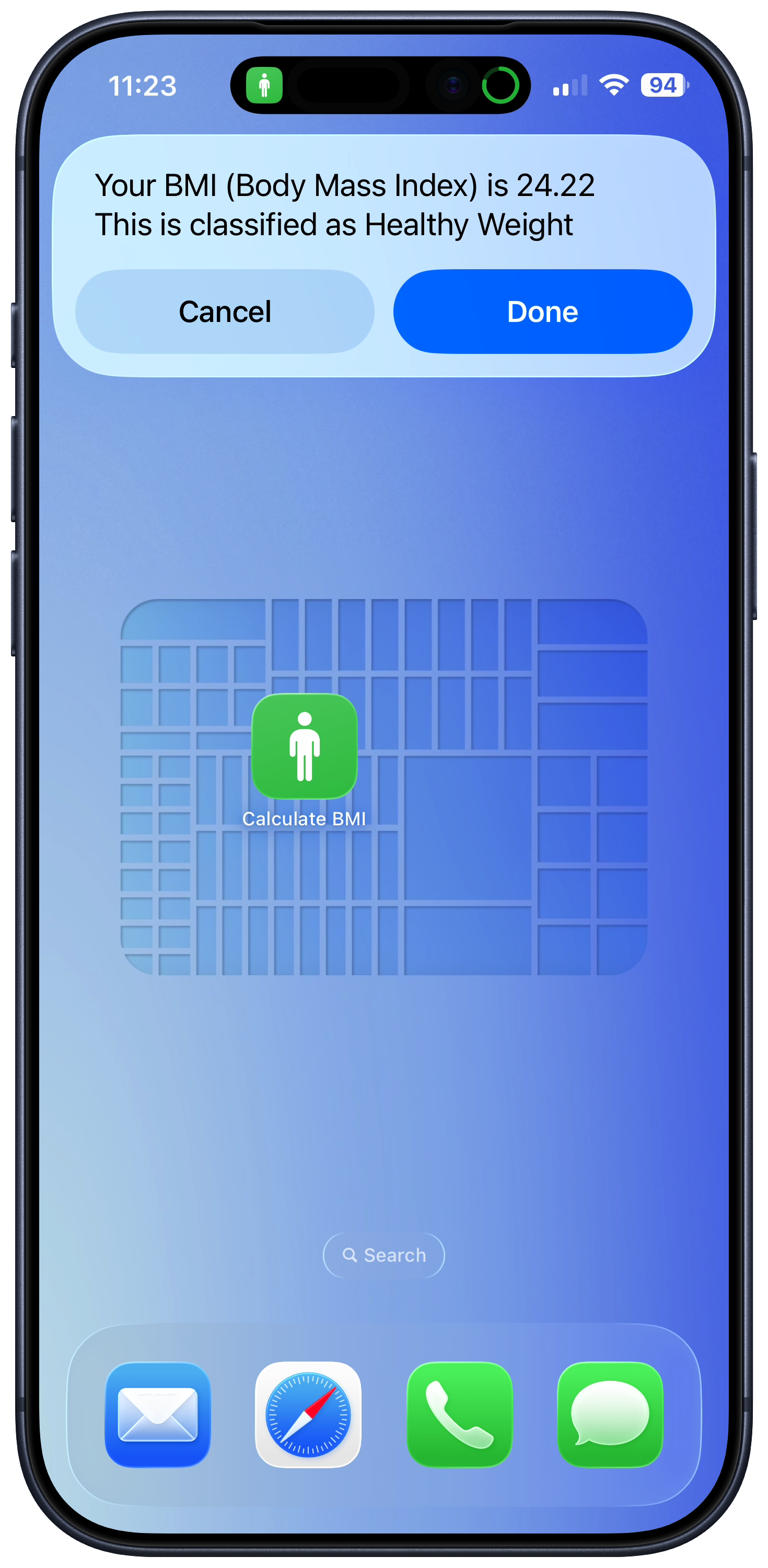
 BMI Calculation
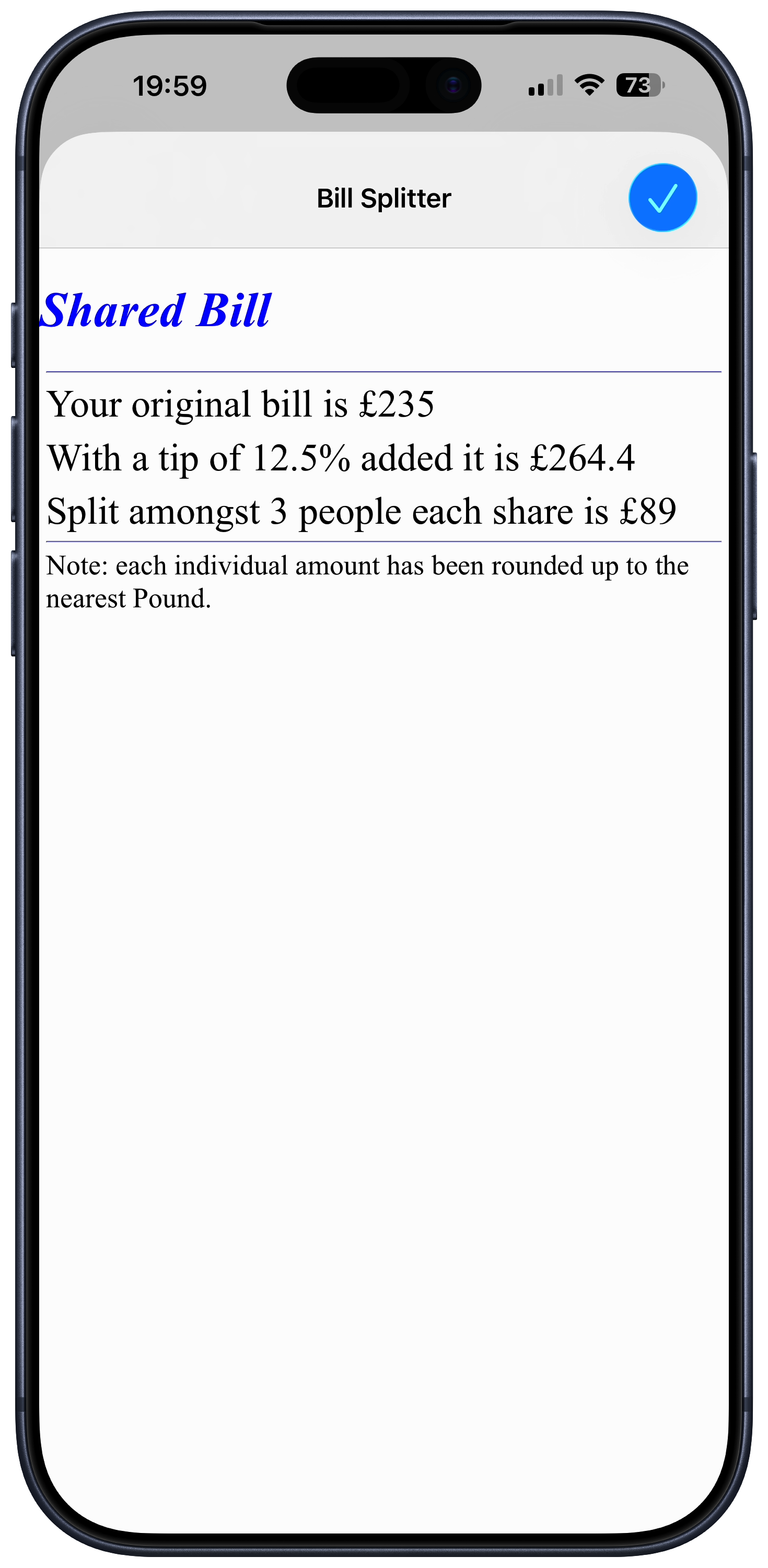
 Bill Splitter
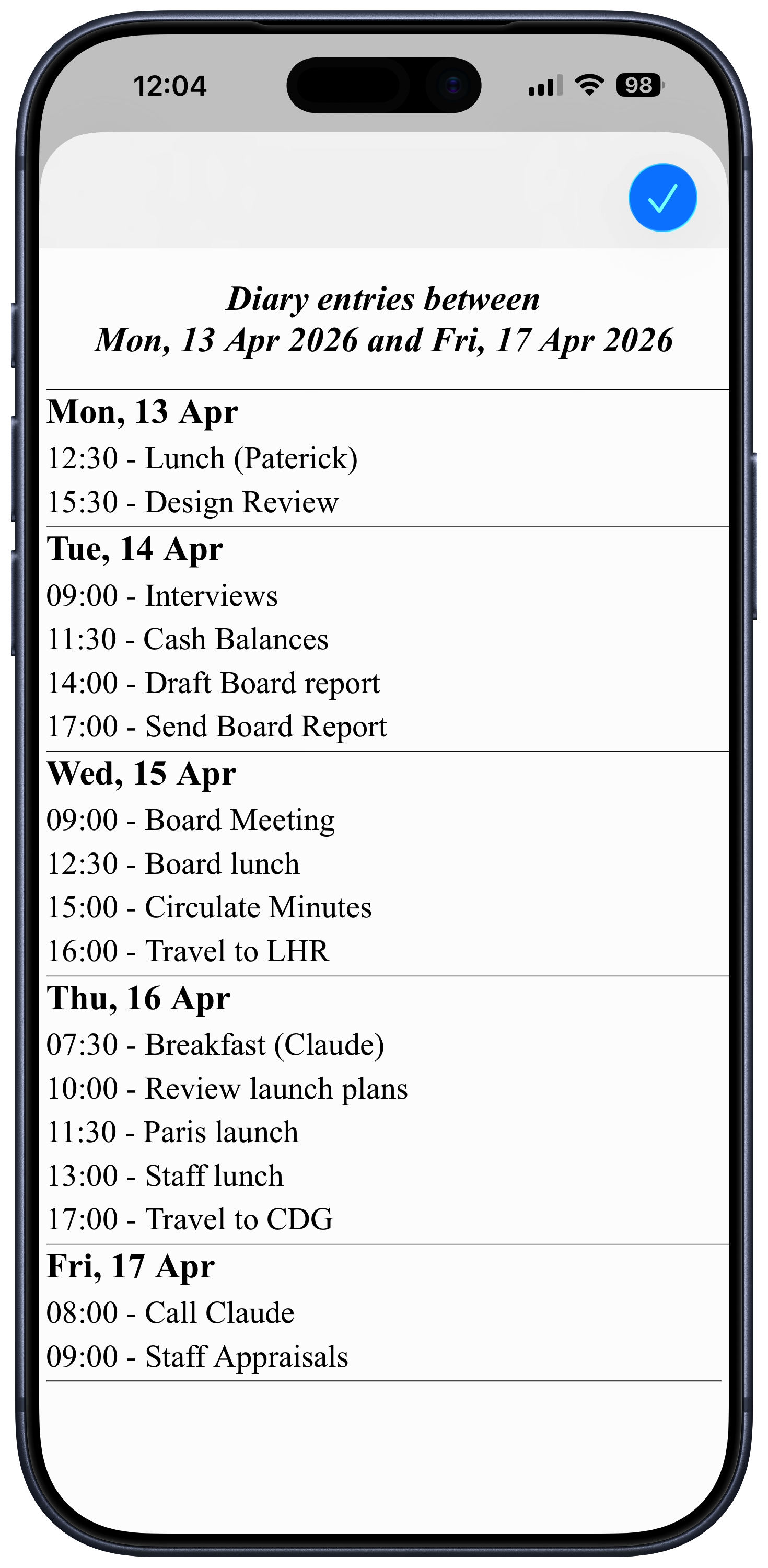
 Show Future Calendar
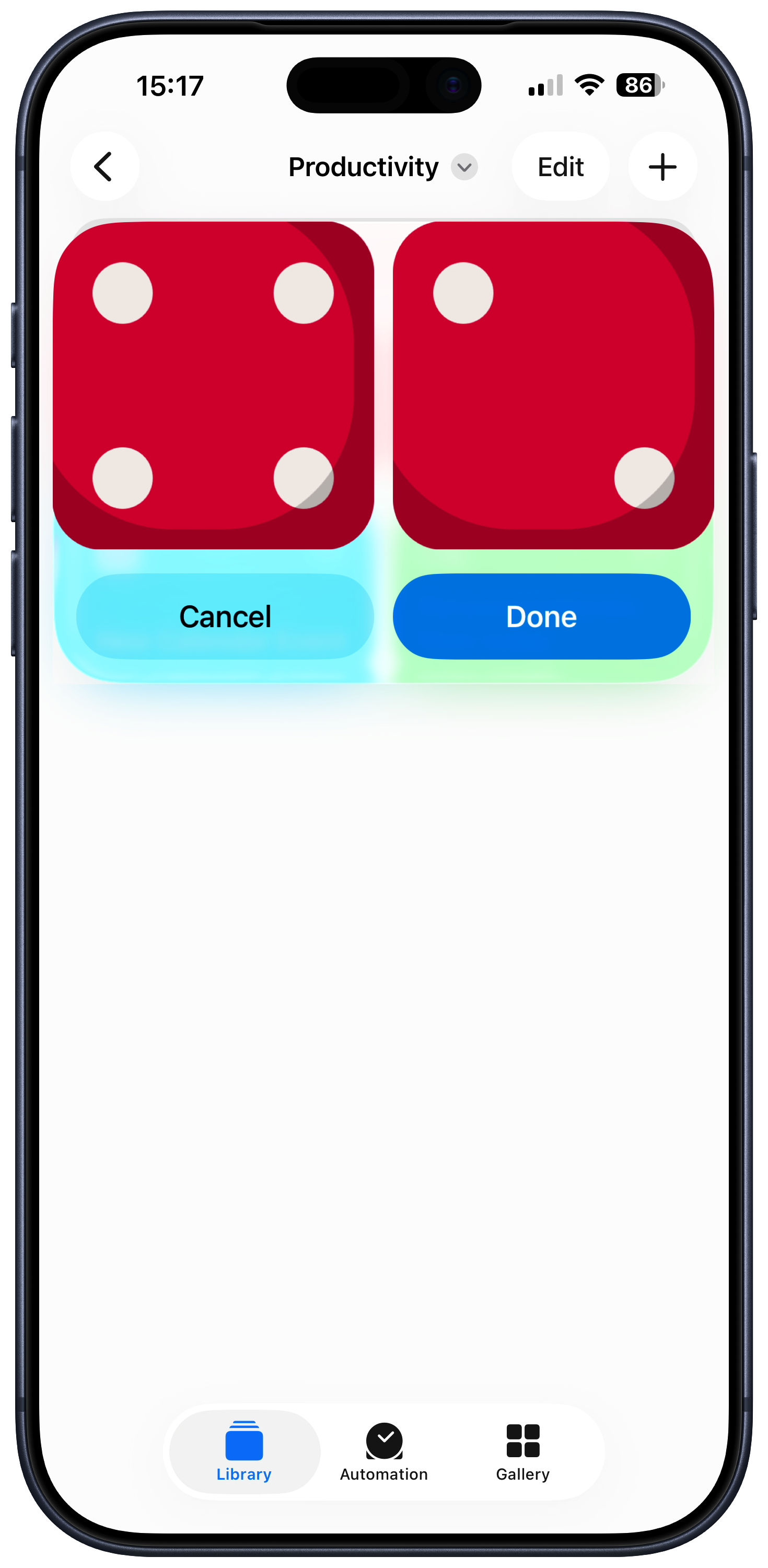
 Decsion Maker
 Apple System Status
 Wi-Fi info & QR code
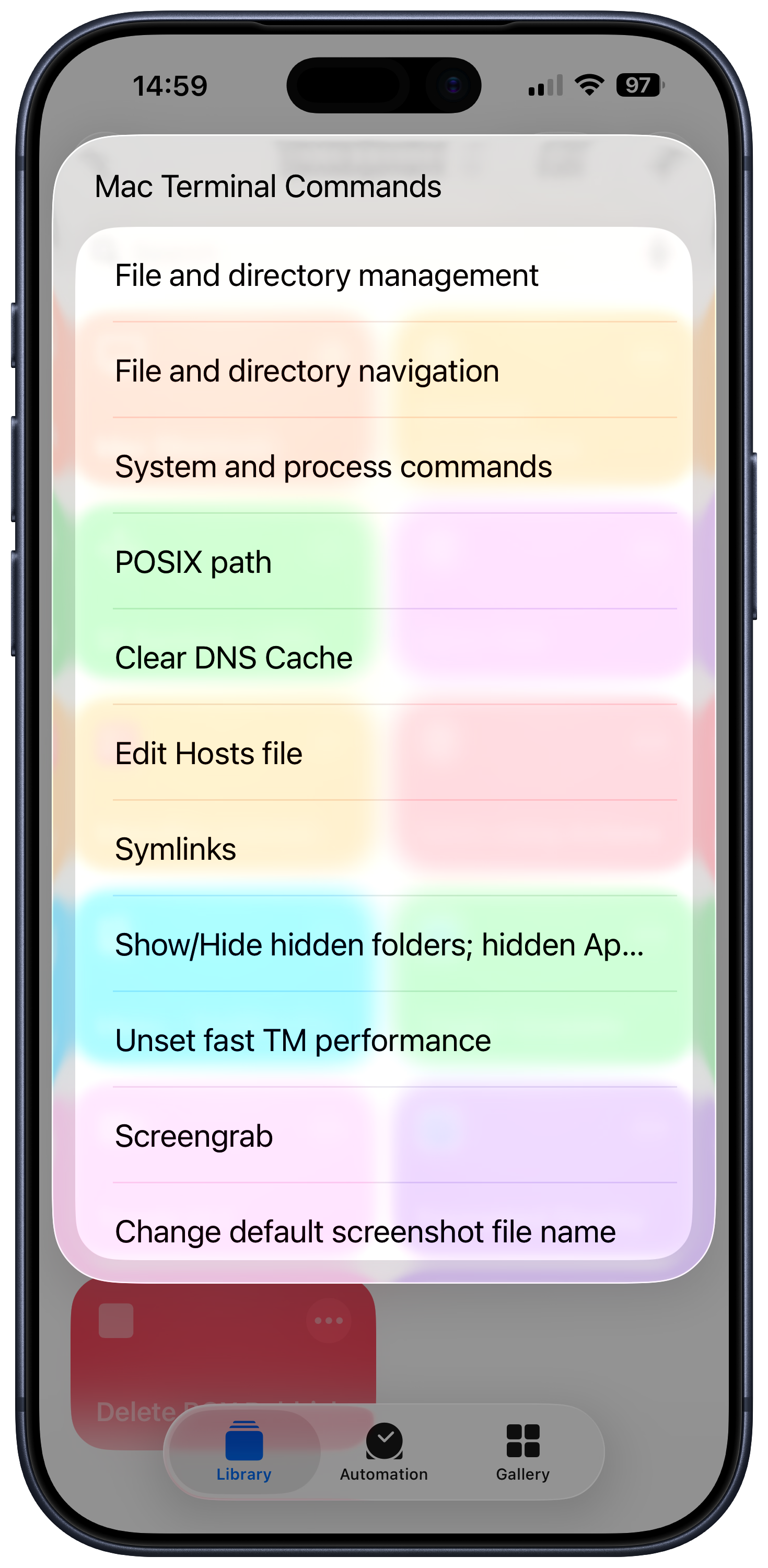
 Mac Terminal Commands
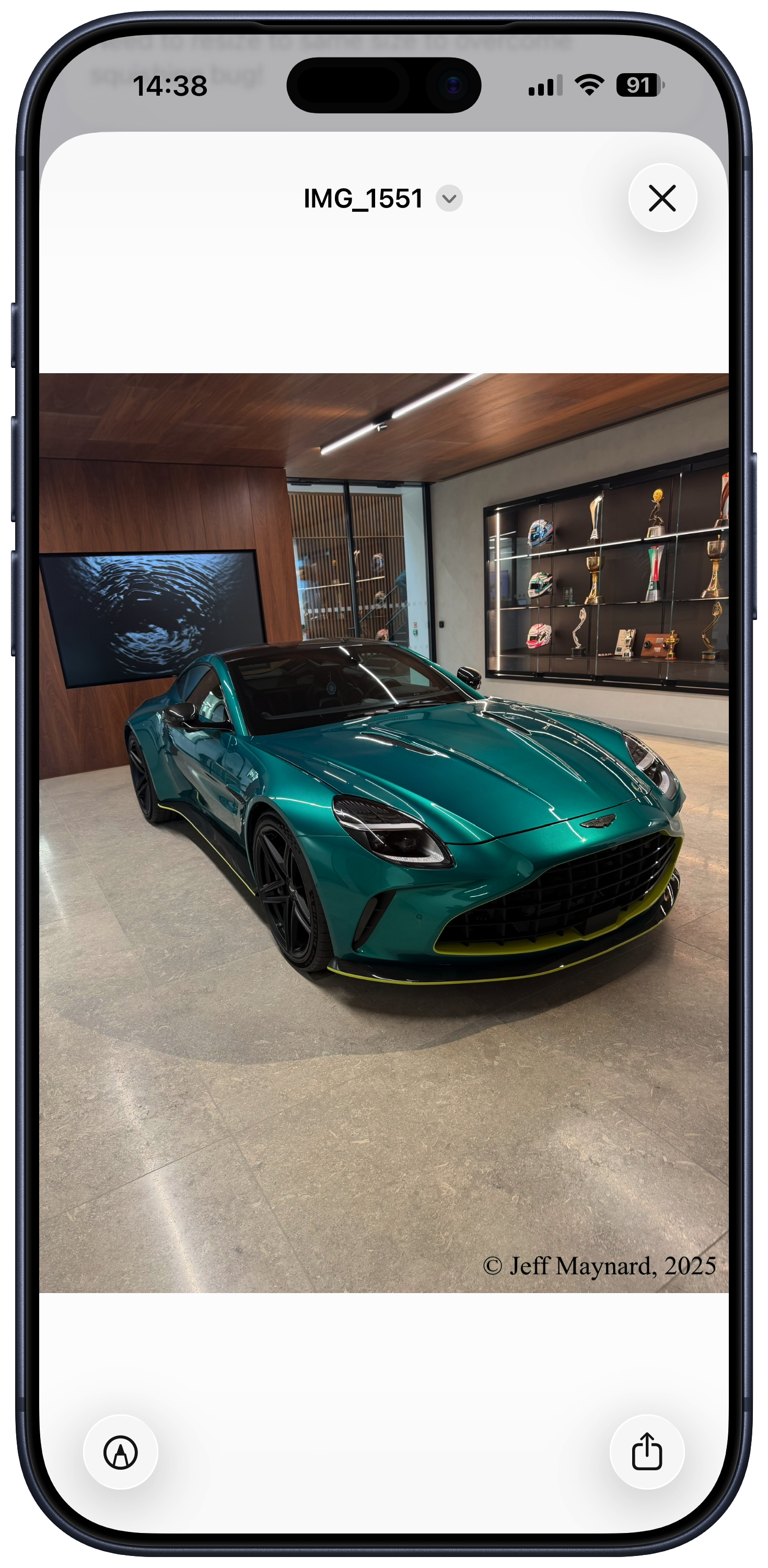
 Copyright an Image
 Where was this taken?
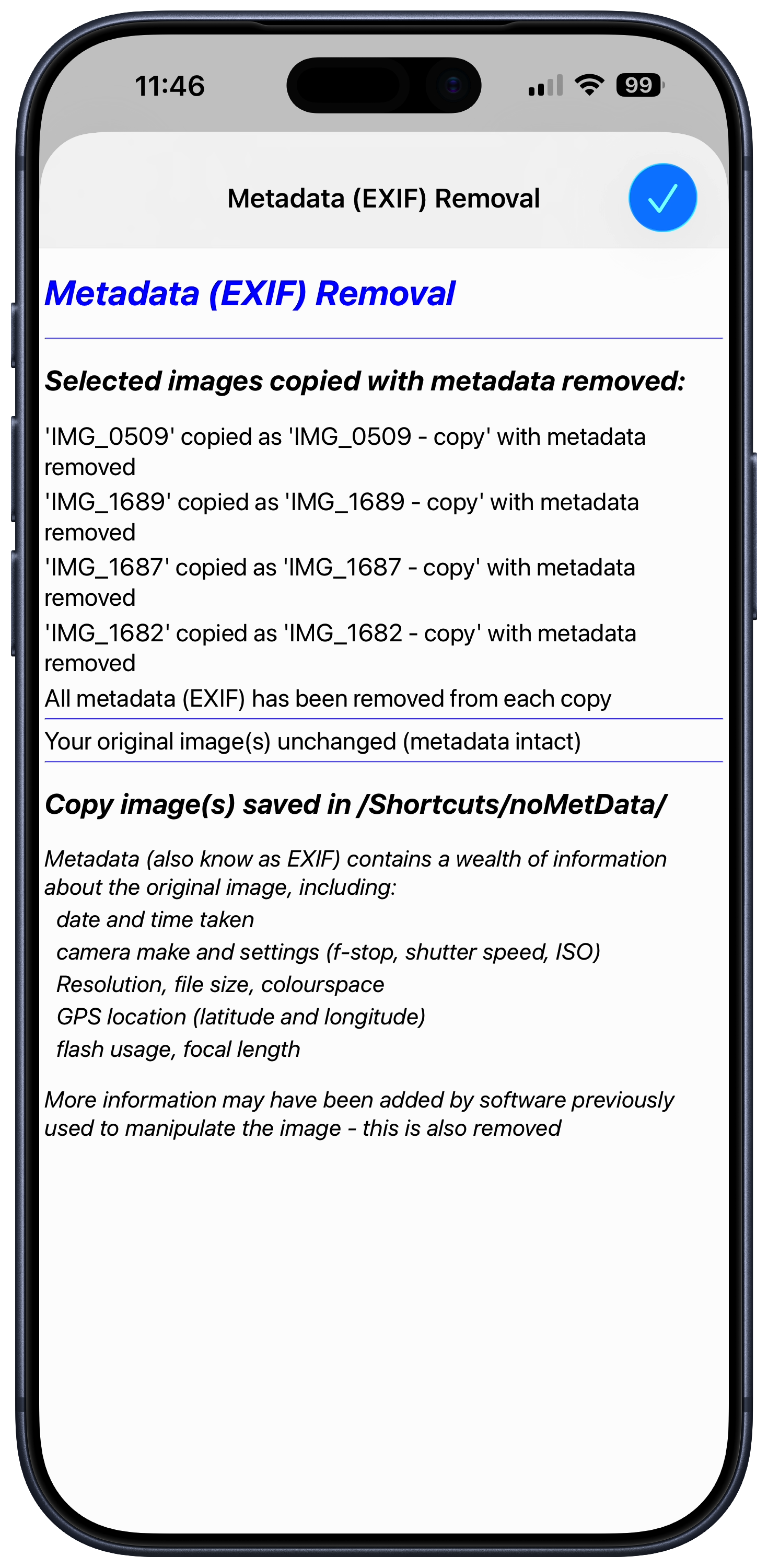
 Strip Metadata